
Inspecting Help article
Change Inspection Rules: Customer
Every customer in CleanGuru has its own inspection rules — the score you want their inspections to hit, and whether CleanGuru creates a ticket when an inspection turns up a problem. This shows you where those two settings live and how to change them.
Open the Customer
Find the customer
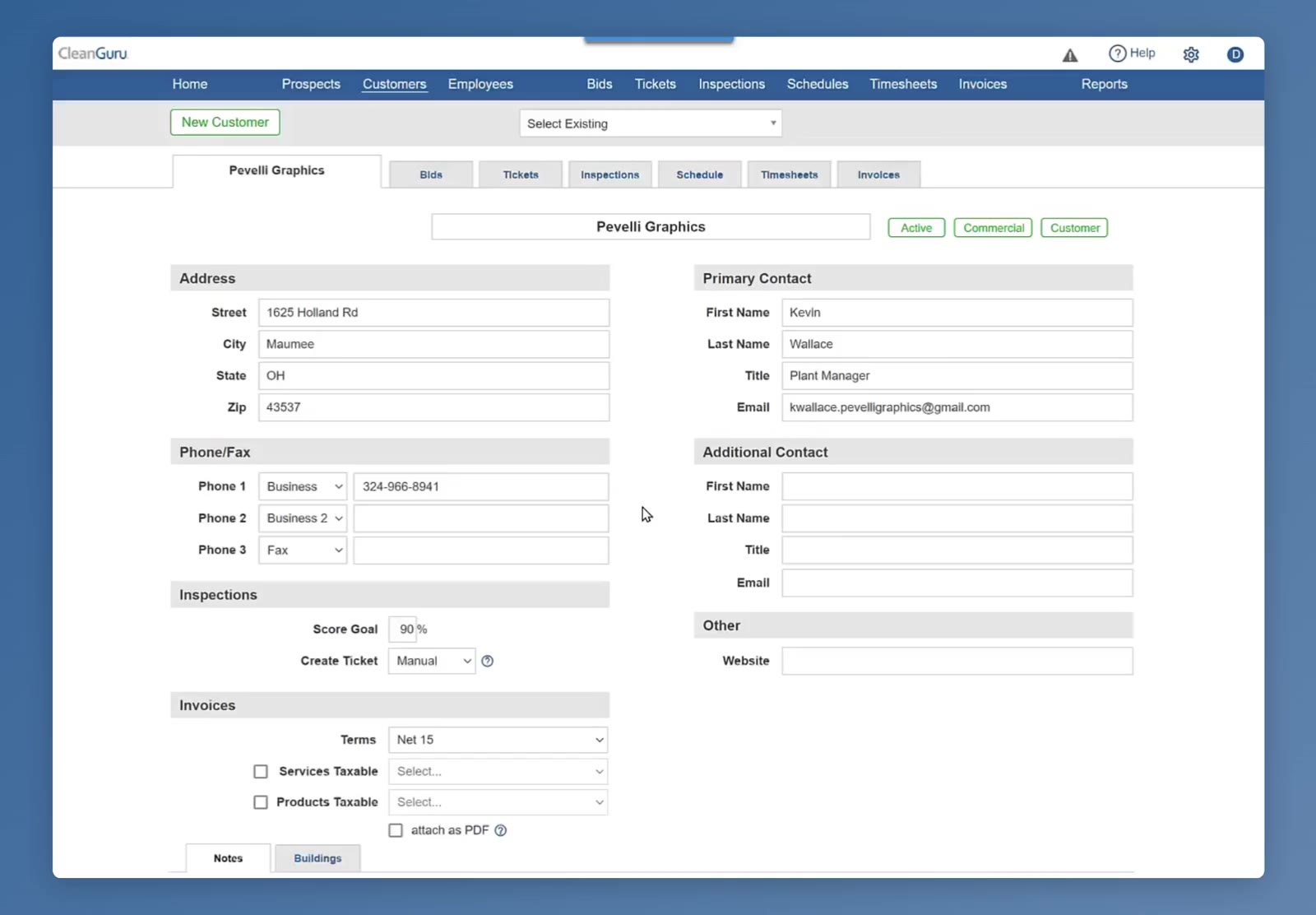
Click Customers in the top menu, then use the Select Existing dropdown at the top of the page to pick the customer you want to change.
Scroll to the Inspections section
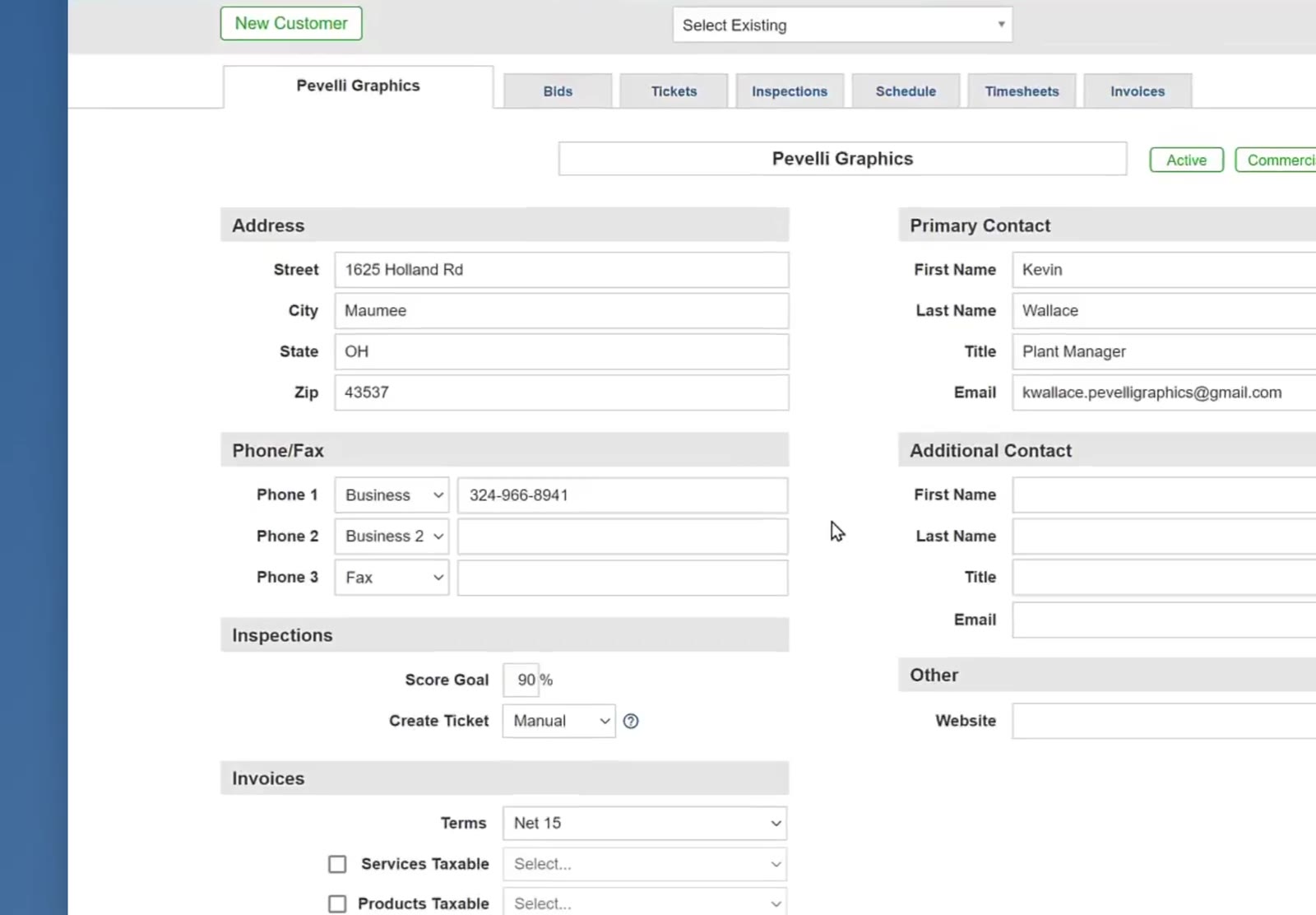
Go down the left side of the customer record, past Address and Phone/Fax, to the Inspections section. It holds two settings: Score Goal and Create Ticket.
Set the Rules
Set the Score Goal
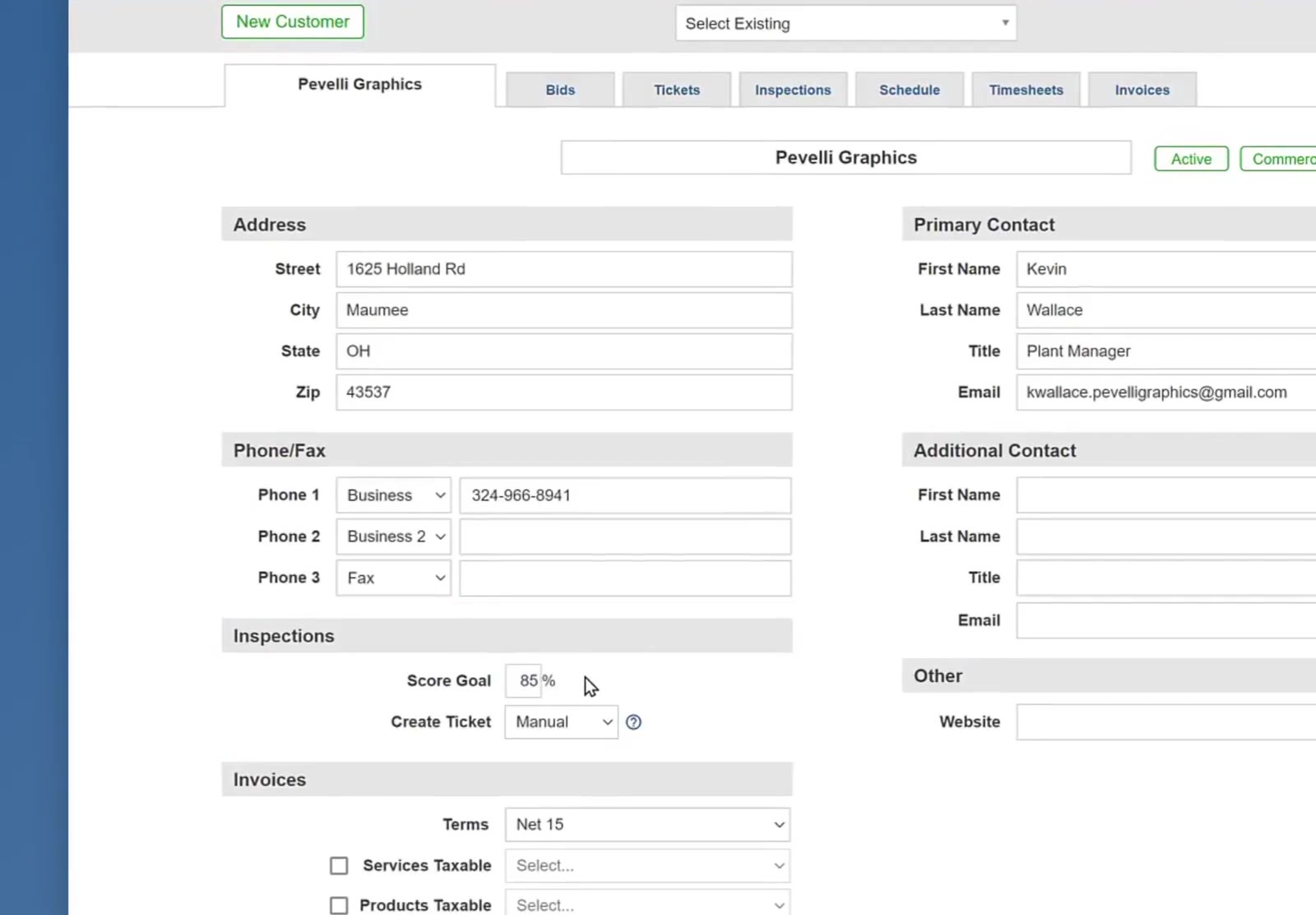
Click into the Score Goal box and type the percentage you want for this customer. In the recording it is changed from 90% to 85%.
Choose how tickets get created
Open the Create Ticket dropdown and pick Manual or Auto. A ticket comes from an item the inspector rates at a level your rating scale marks as deficient. With Auto, CleanGuru creates that ticket for you. With Manual, you create it yourself.
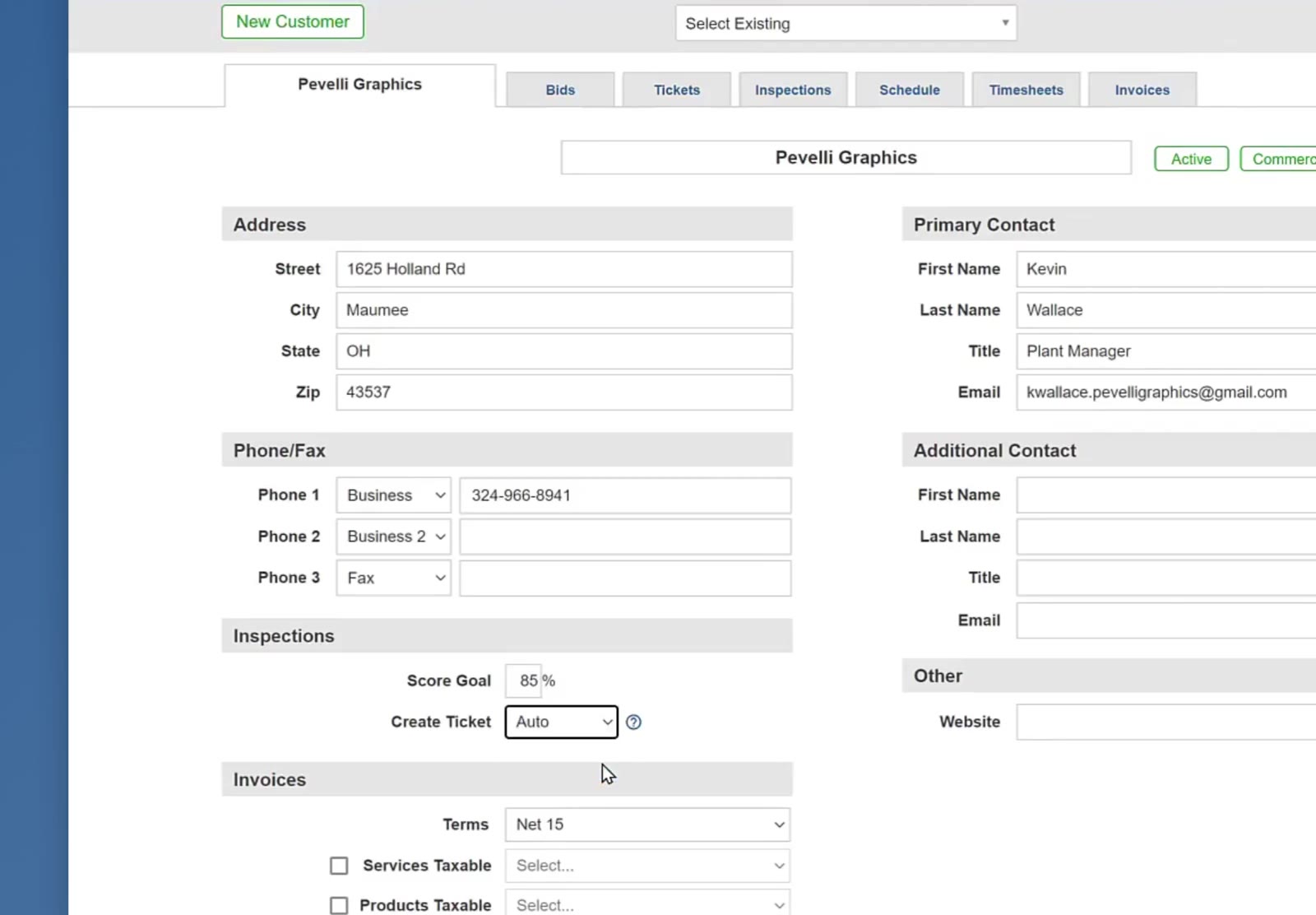
No deficient items, no ticket. If an inspection comes back with nothing rated at a deficient level, CleanGuru creates no ticket — on either setting.
Save the customer
Scroll to the bottom of the customer record and click Save.