Payment terms, tax and whether the invoice goes out with a PDF attached are all set on the customer, so every customer can be different. This shows you where those settings are and how to change them.

Open the Customer

1

Find the customer

Click Customers in the top menu, then use the Select Existing dropdown to pick the customer you want to change.
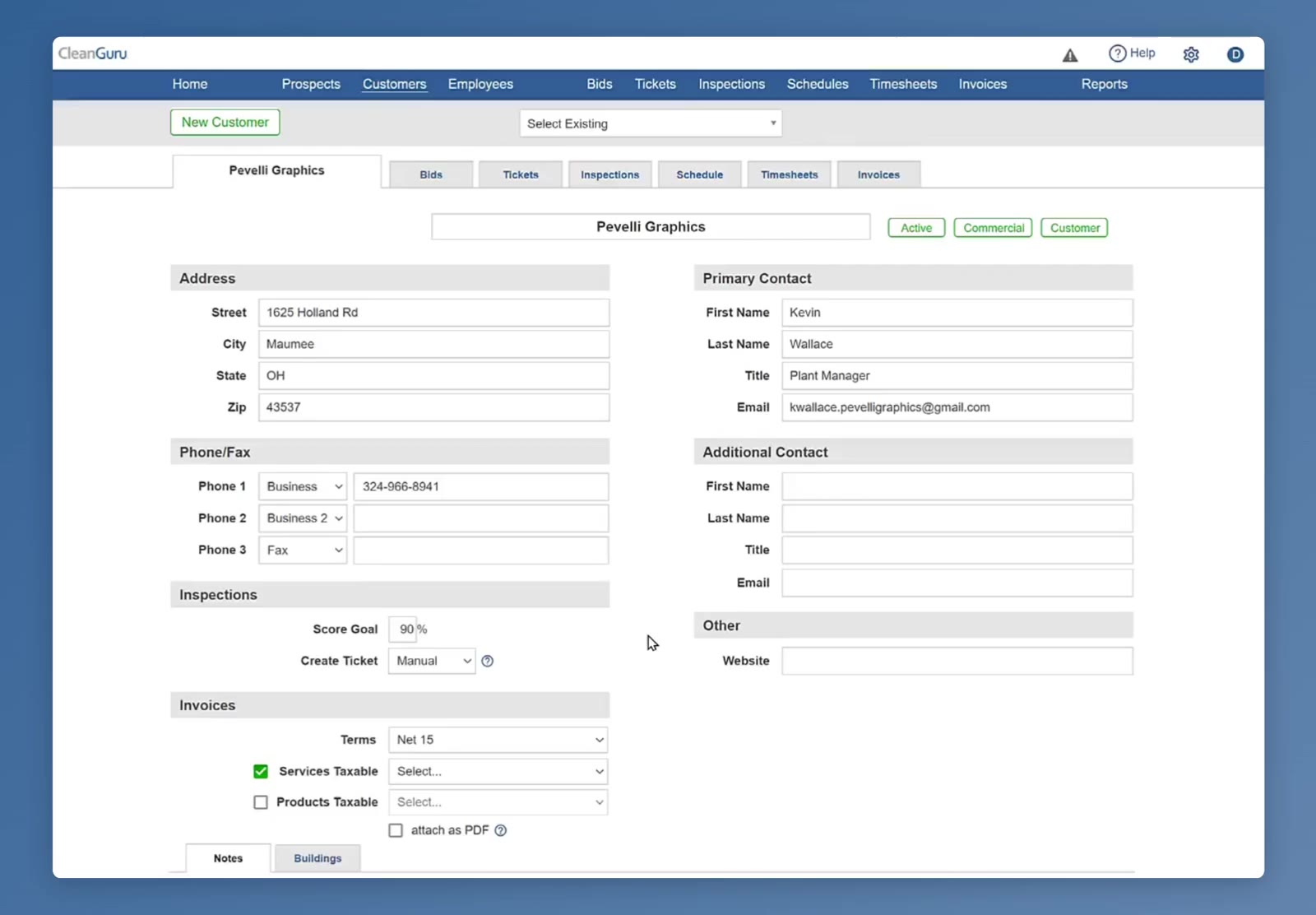
Customer record for Pevelli Graphics with the address and contact details at the top
The customer record opens with the address and contact details at the top.
2

Scroll to the Invoices section

Go down the left side of the record, past Address, Phone/Fax and Inspections, to the Invoices section.
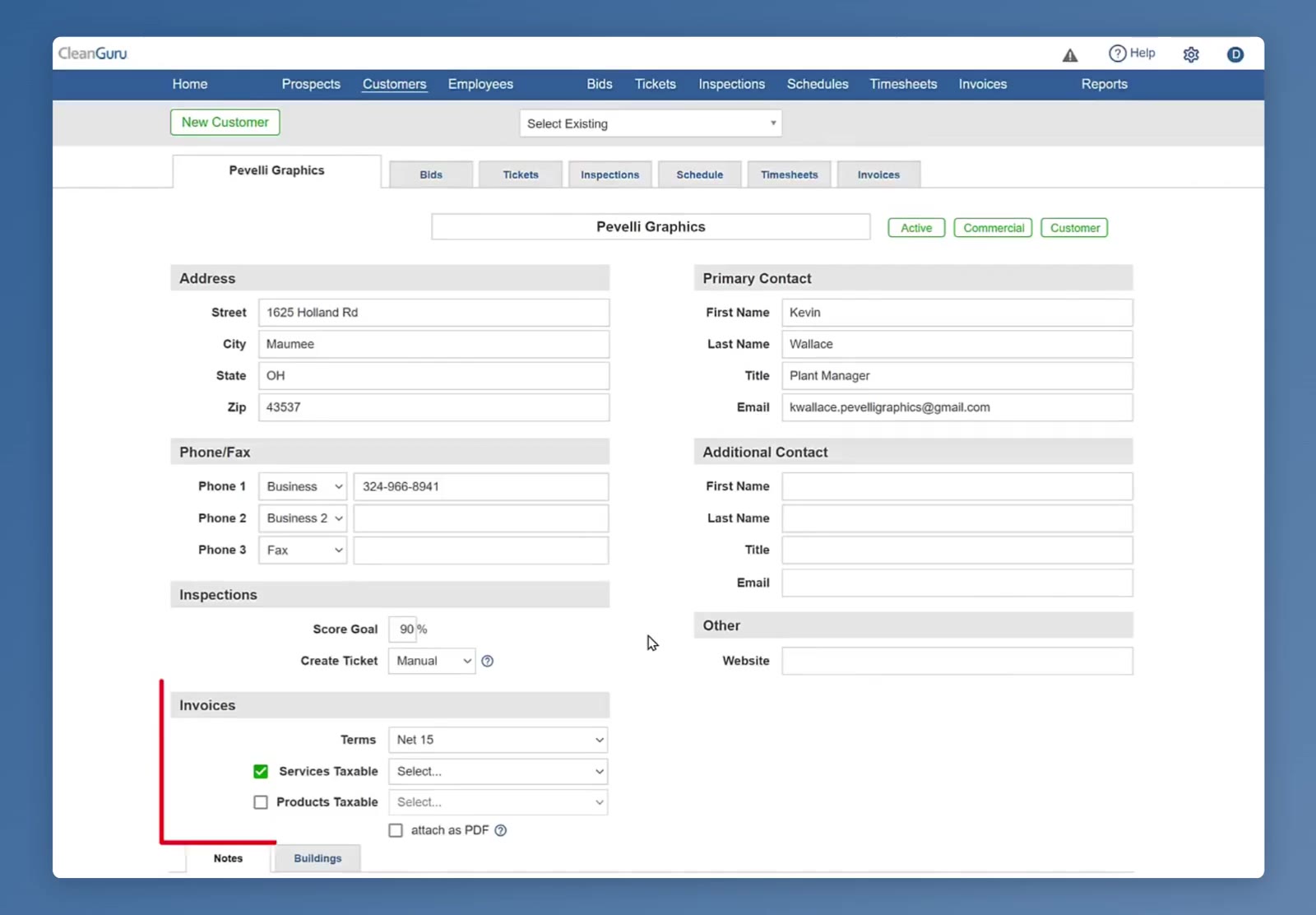
Customer record with the Invoices section outlined in red below Inspections
The Invoices section sits on the left of the customer record, under Inspections.

Set the Rules

3

Set the terms

The Terms dropdown at the top of the section sets how long this customer gets to pay each invoice.
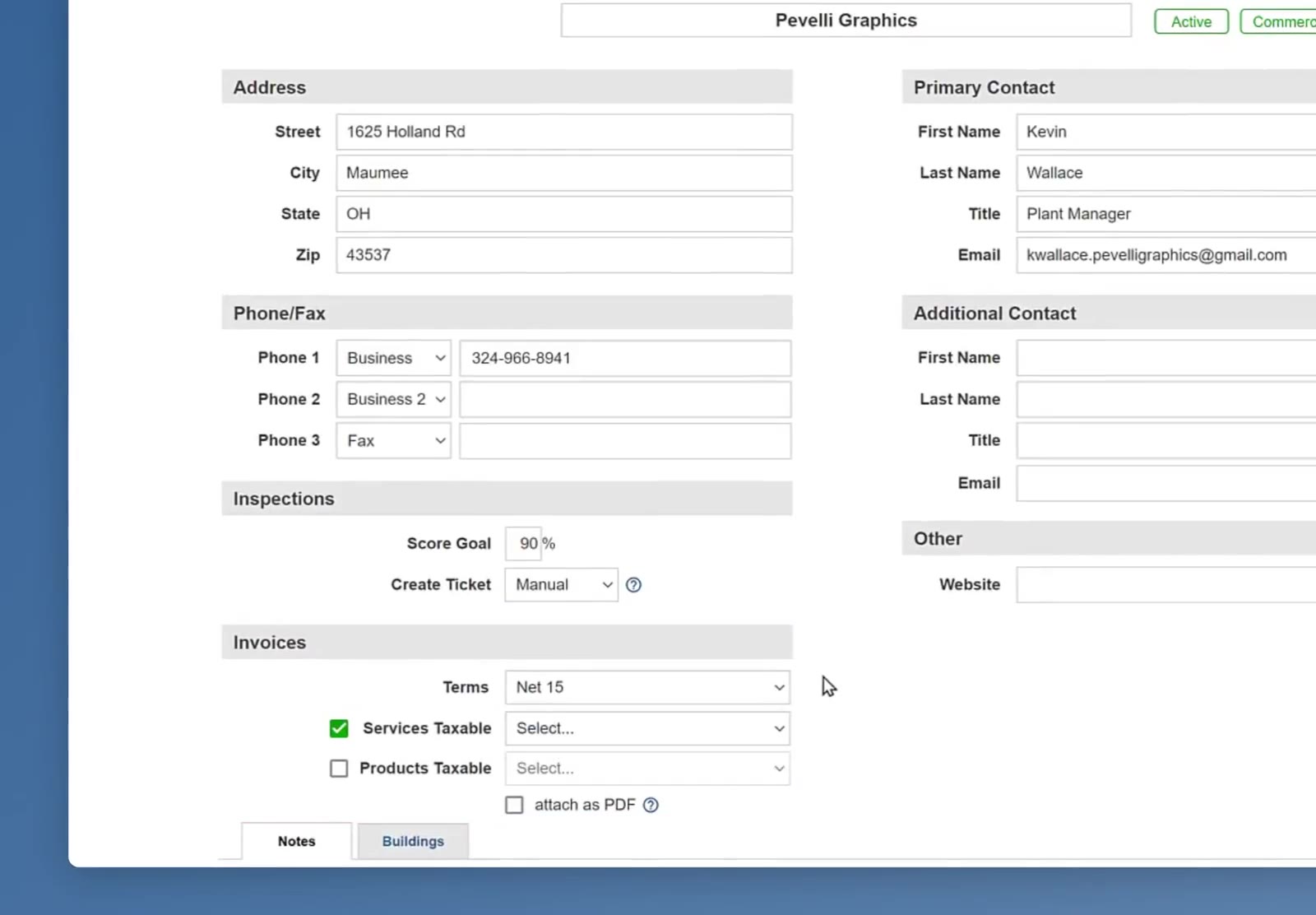
Invoices section with Terms set to Net 15 above the Services and Products Taxable rows
Terms sits at the top of the Invoices section, above the two tax rows.
4

Put tax on services

Tick Services Taxable and pick a rate from the dropdown beside it. The dropdown lists the taxes you already have, and + New Tax at the top of it lets you add one there without leaving the page.
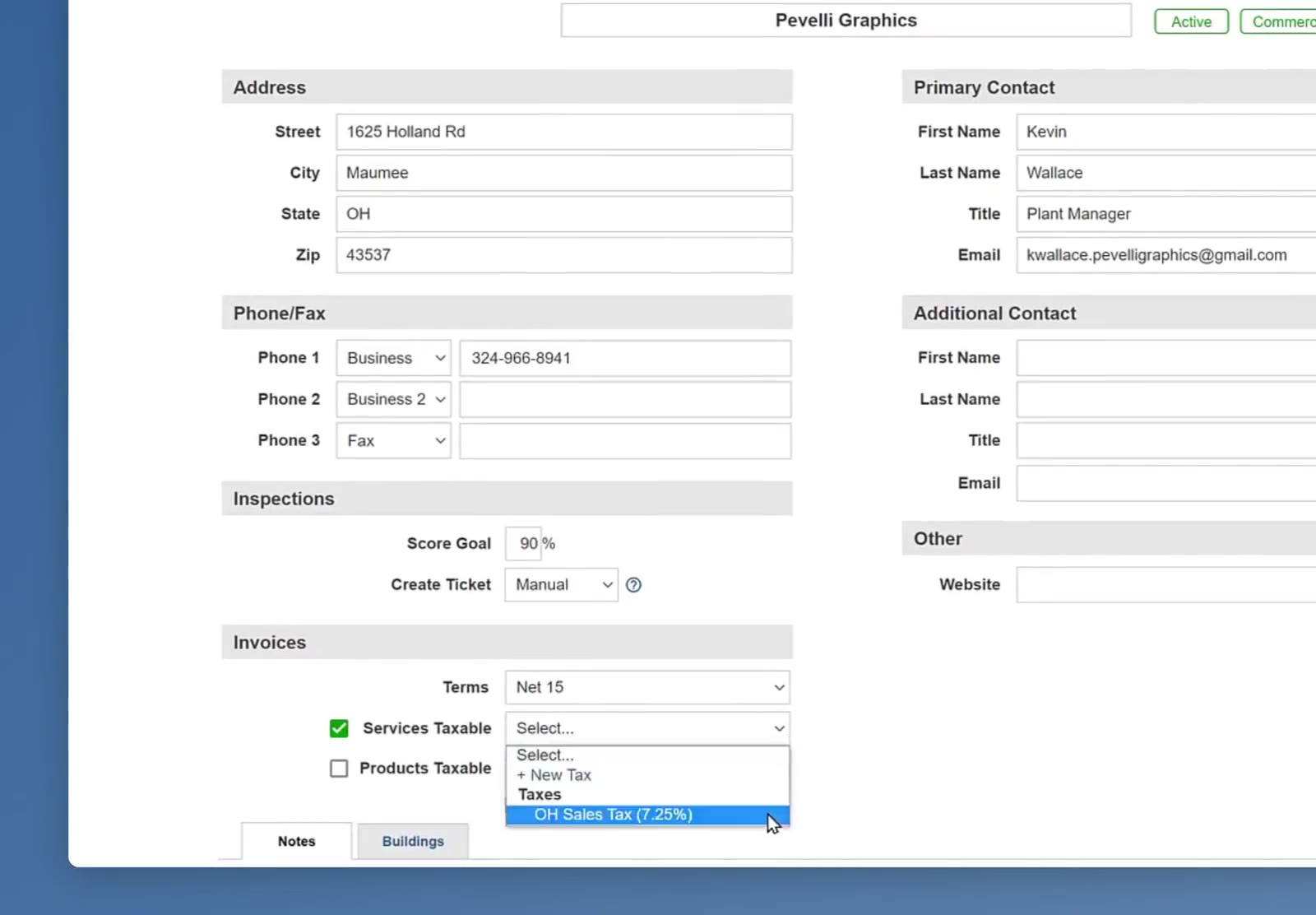
Services Taxable dropdown open, listing New Tax above the existing sales tax rate
The tax dropdown lists your existing taxes with + New Tax above them.
5

Put tax on products

If you sell products to this customer as well, tick Products Taxable and pick a rate the same way.
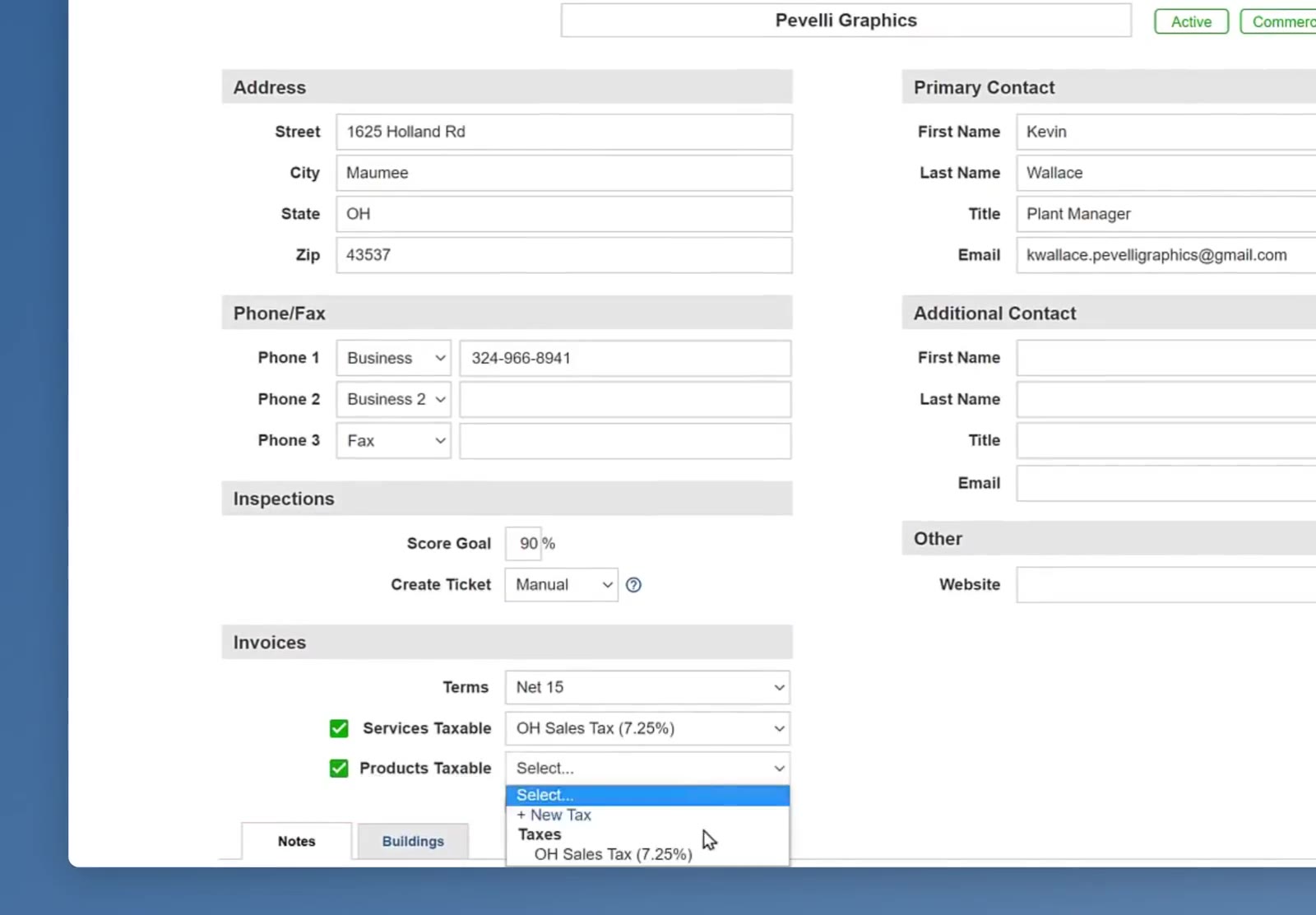
Products Taxable dropdown open, with New Tax and the same sales tax rate below
Products Taxable has its own dropdown, with + New Tax available there too.
6

Decide about the PDF

Tick attach as PDF to send a PDF copy of the invoice along with the email. Some customers need it: their company will not let staff click a link in an email, but will let them open an attachment.
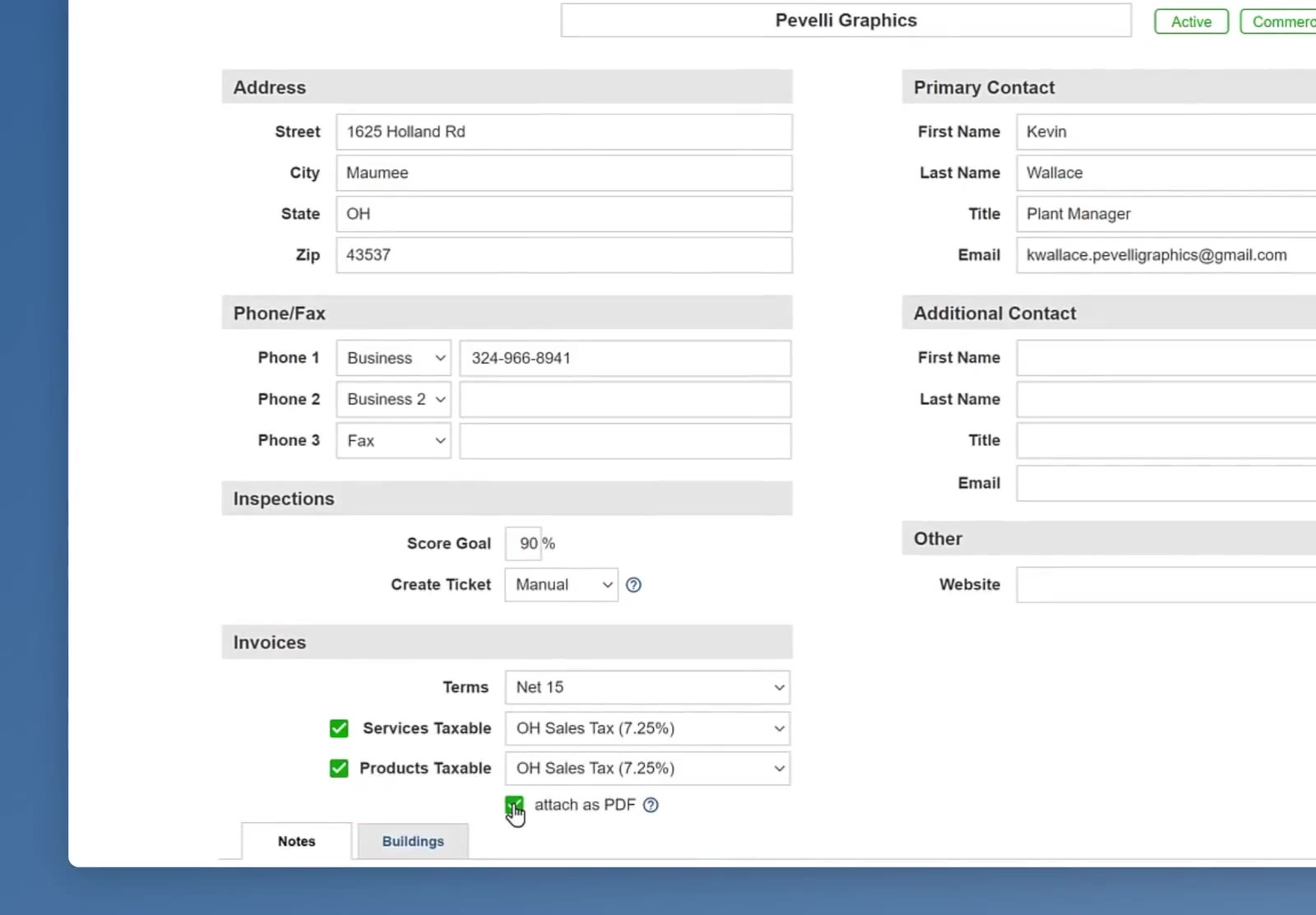
Invoices section with both tax rows set and attach as PDF being ticked
attach as PDF is a single tick box under the two tax rows.
7

Save the customer

Scroll to the bottom of the customer record and click Save.
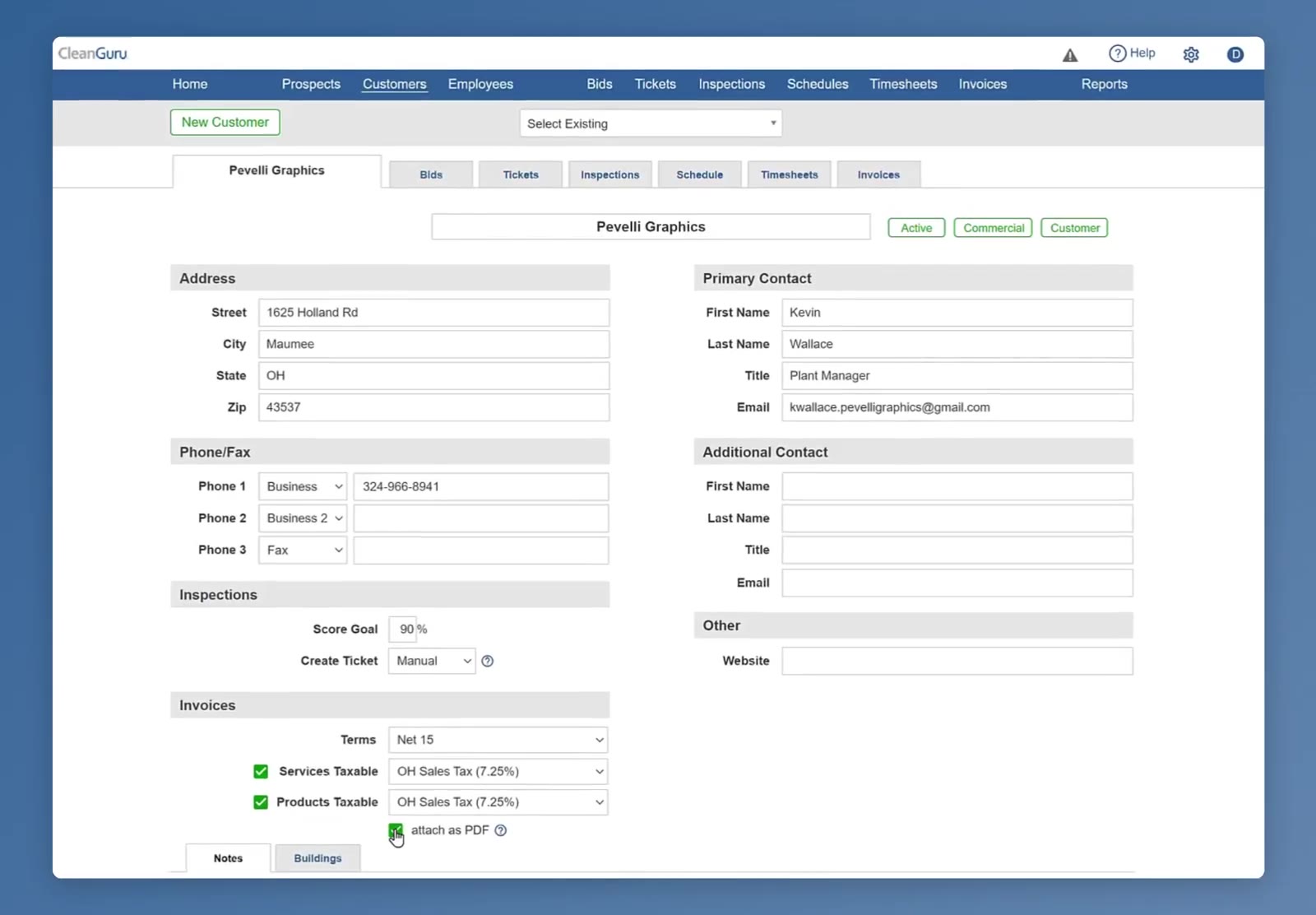
Finished Invoices section with Net 15 terms, both taxes set and attach as PDF ticked
The finished Invoices section, with terms set, both tax rows filled in and attach as PDF ticked.

FAQ

No. Pick one you already have, or click + New Tax in the dropdown and add it there. You can also set taxes up in Settings if you would rather.
CleanGuru will not let you save the page until you pick one.
In Settings under Invoices you can set what a new customer starts on, but it does not change the customers you already have. Those you change one at a time on the customer record.
Some companies do not let their staff click links in an email but will let them open a PDF. Attaching it makes sure the invoice still reaches the person who has to pay it.