Set Up Help article
Complimentary Access Scheduling & Timekeeping
Scheduling and timekeeping come free with CleanGuru for up to five cleaners. This is where those tools sit, and how to find help with them without leaving the screen.
Where the Tools Sit
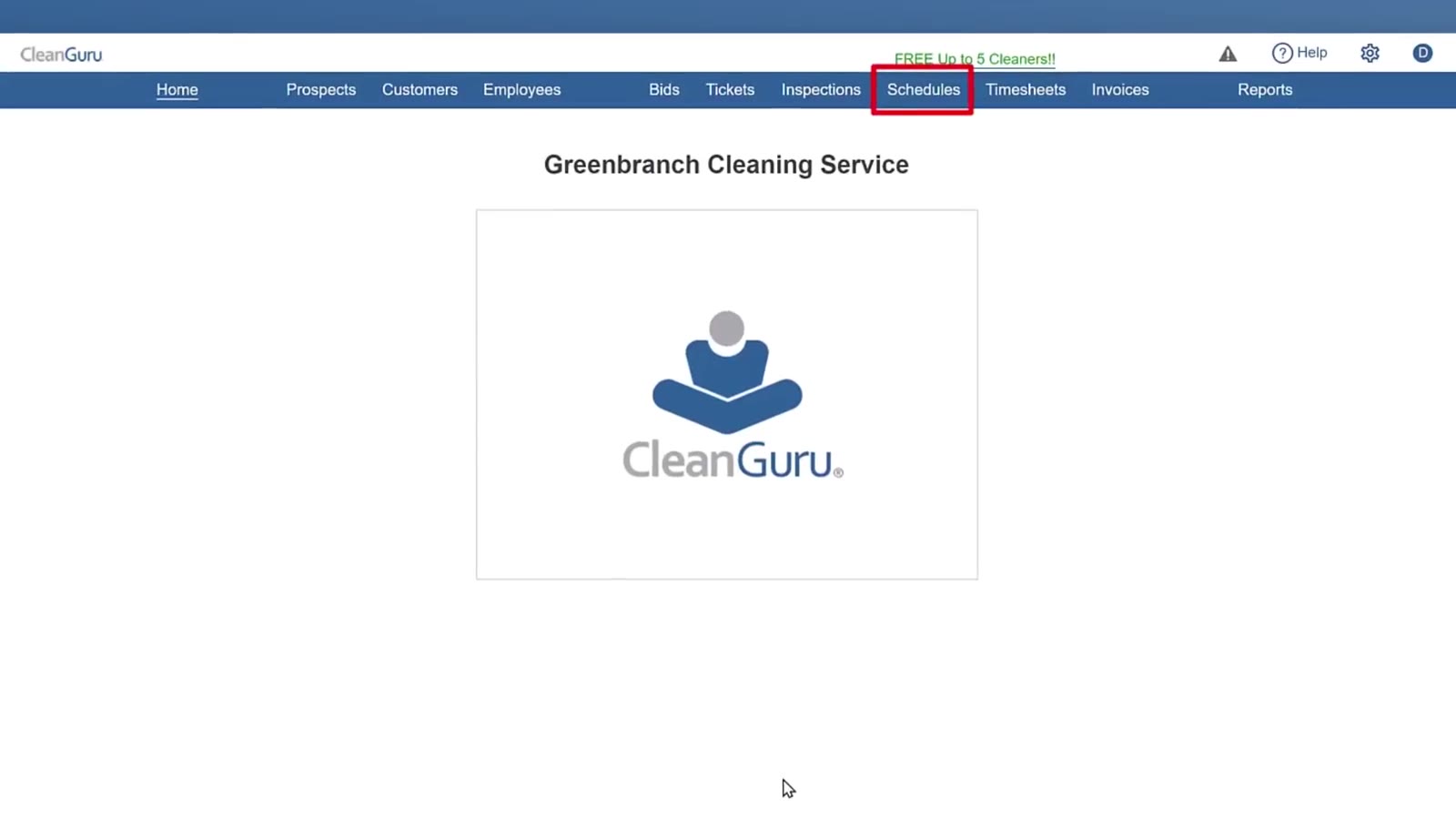
Open Schedules
Schedules sits in the top navigation bar, between Inspections and Timesheets. This is where the work gets planned.
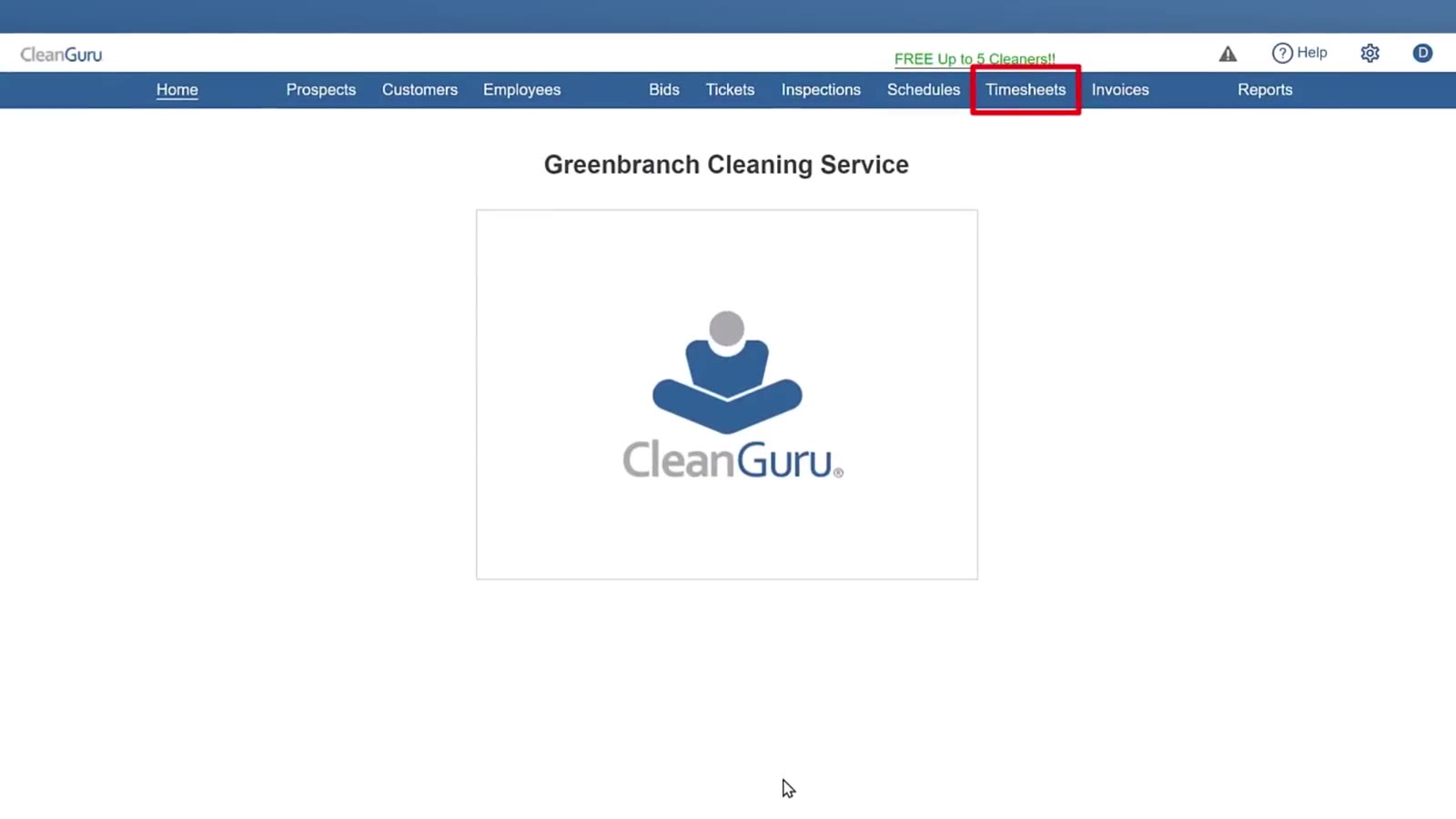
Open Timesheets
Timesheets is the next one along, before Invoices. This is where the hours your cleaners actually worked are kept.
The Records Behind the Work
Prospects, Customers and Employees
These three sit together at the left of the navigation bar. They hold the names, contact details and accounts that the schedules and timesheets draw on.

Tickets
Tickets shows work as it happens. An offsite check-in gives you the cleaner, the building, the ticket number, the date, the check-in time and how far away it was, with a map showing the pin against the building.

Find Help Without Leaving CleanGuru
Open the help panel
Click the blue ? button at the bottom right of the screen. The Answers panel opens with a list of common tasks — Add Cleaner, Add Employee, Add Supervisor and the rest.
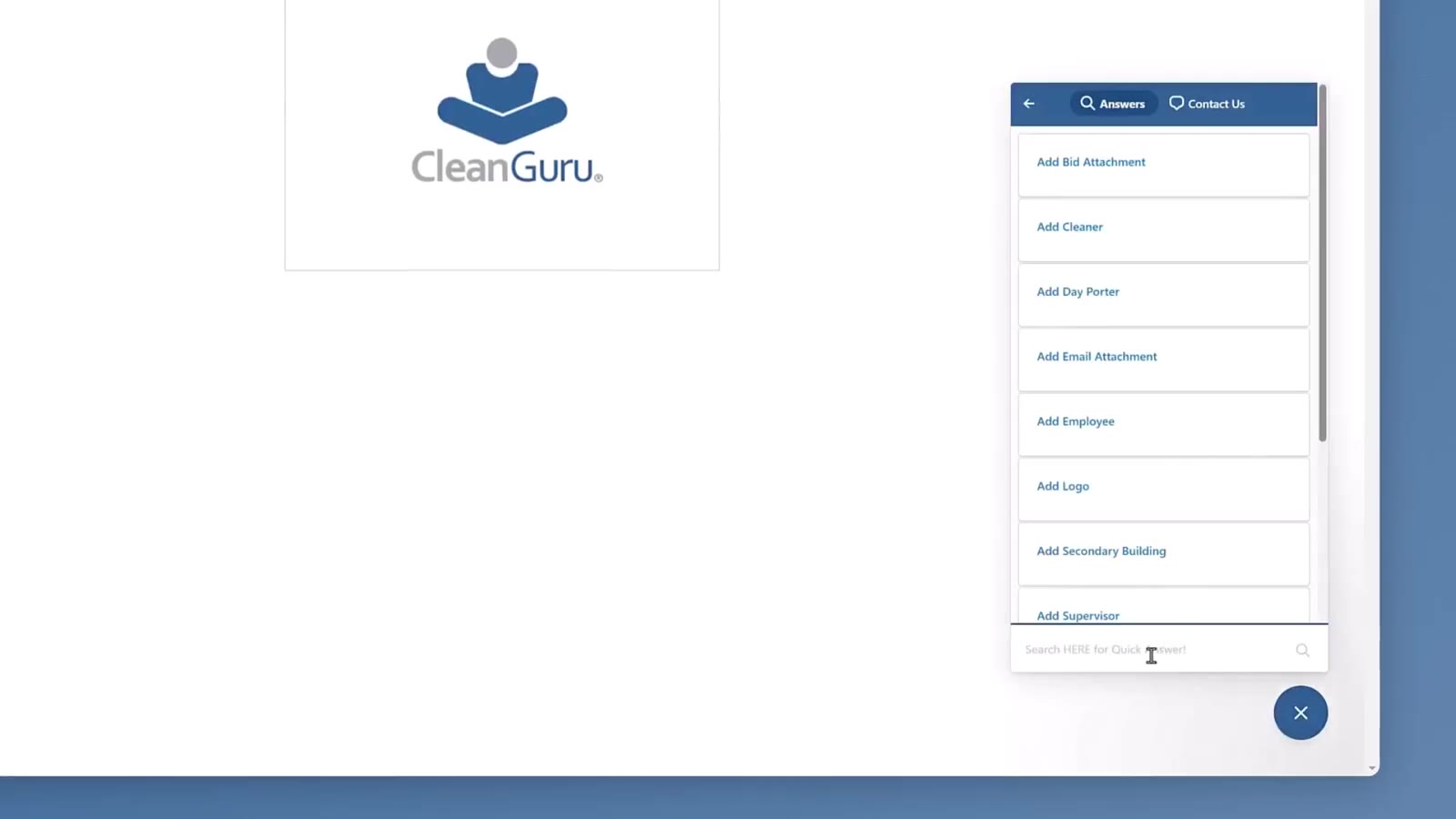
Search it
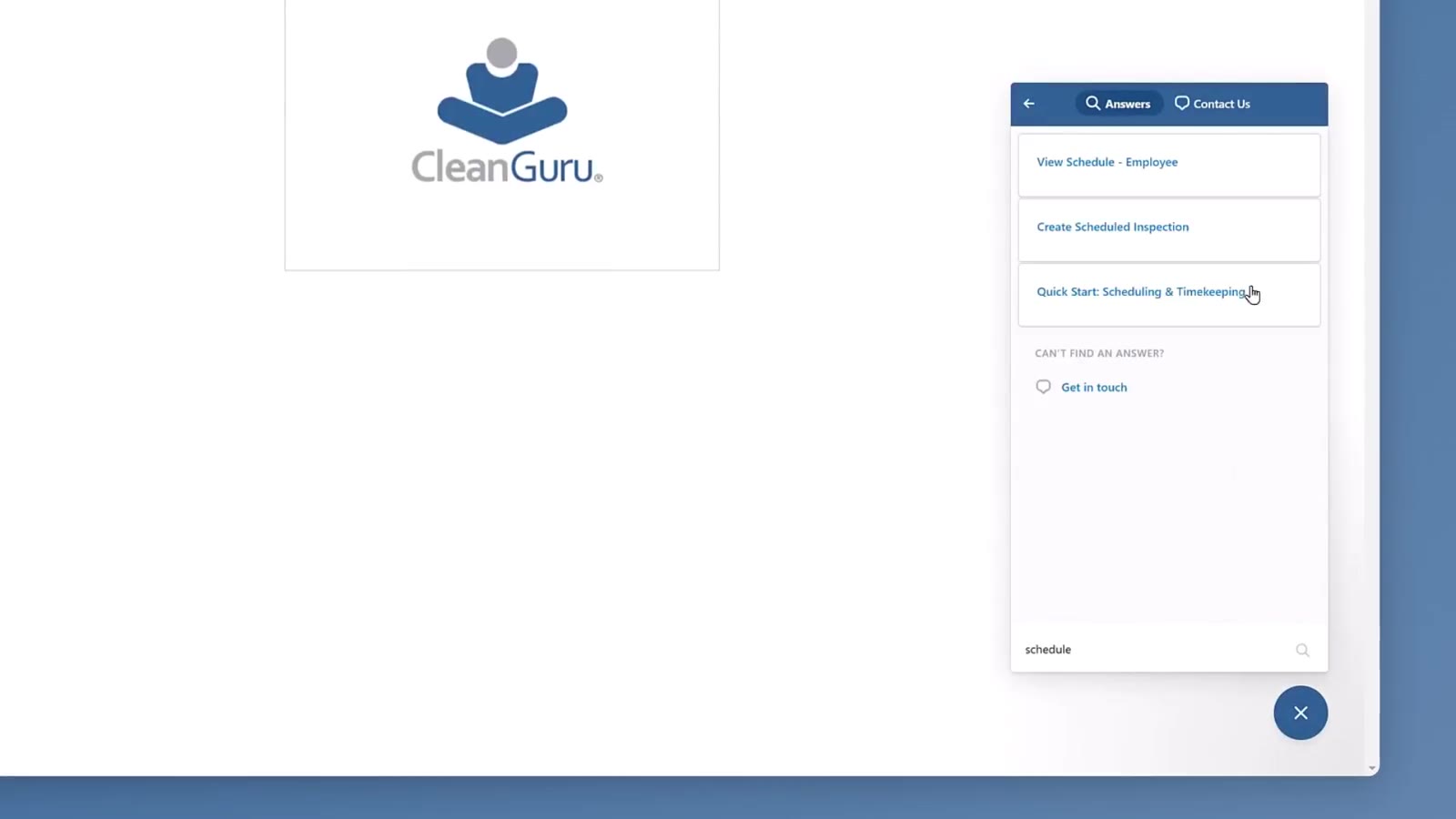
Type in the box at the bottom of the panel. Typing schedule brings back View Schedule – Employee, Create Scheduled Inspection and Quick Start: Scheduling & Timekeeping.
Open a result, or ask
Click a result to open it. When nothing matches, Get in touch appears under the list.
Close the panel
Click the blue × to close it and go back to what you were doing.