
Bidding Help article
Create Window Bid
A window bid is priced by the pane, not by the square foot. You count the panes floor by floor, tell CleanGuru how hard they are to reach and what state they are in, and it prices inside-and-out, outside-only and inside-only separately.
Start the Bid
Open the Window bids screen
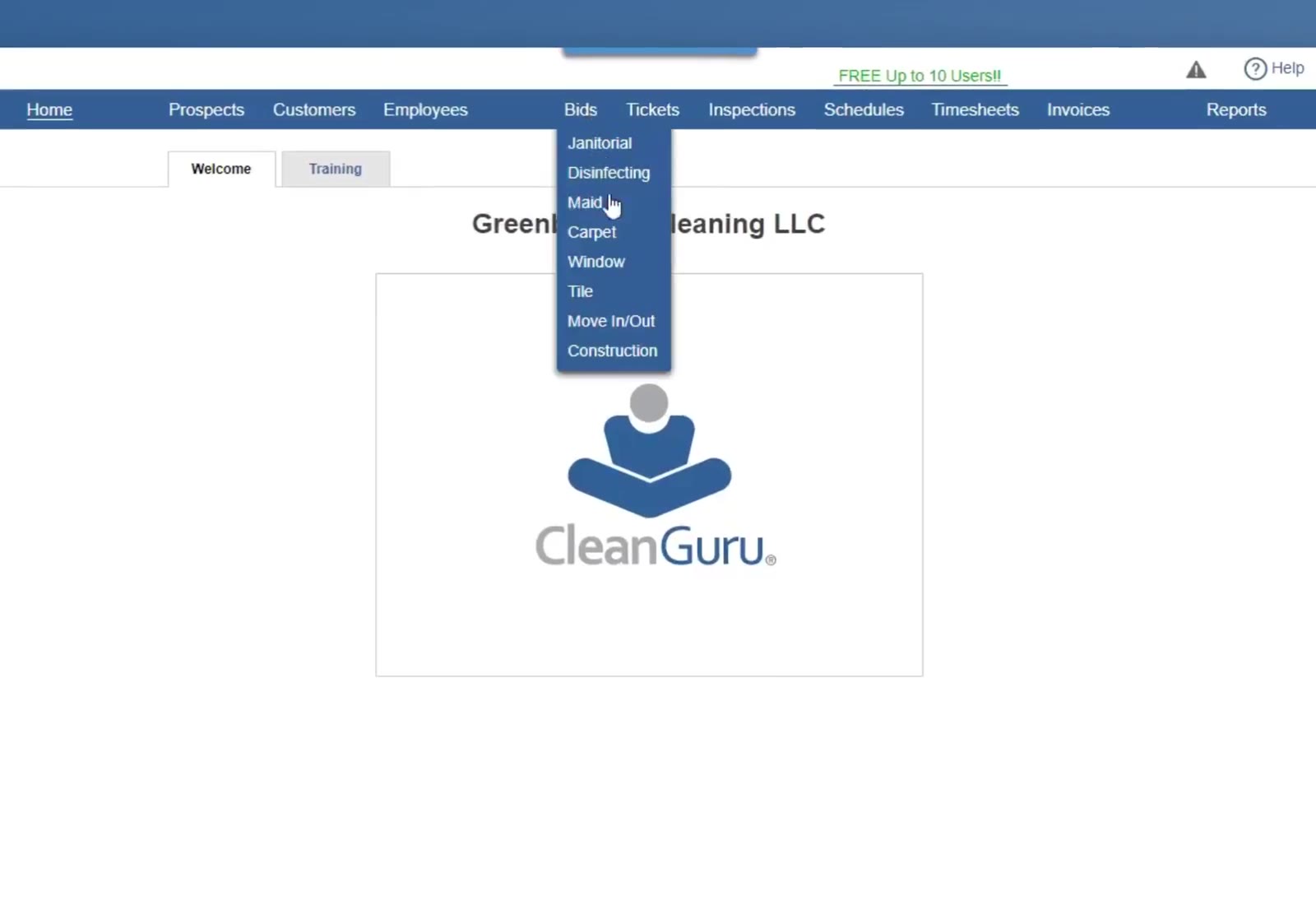
In the top navigation bar, hover Bids and choose Window.
Start a new bid
Click the green New Bid button at the top left.
Fill in the bid details
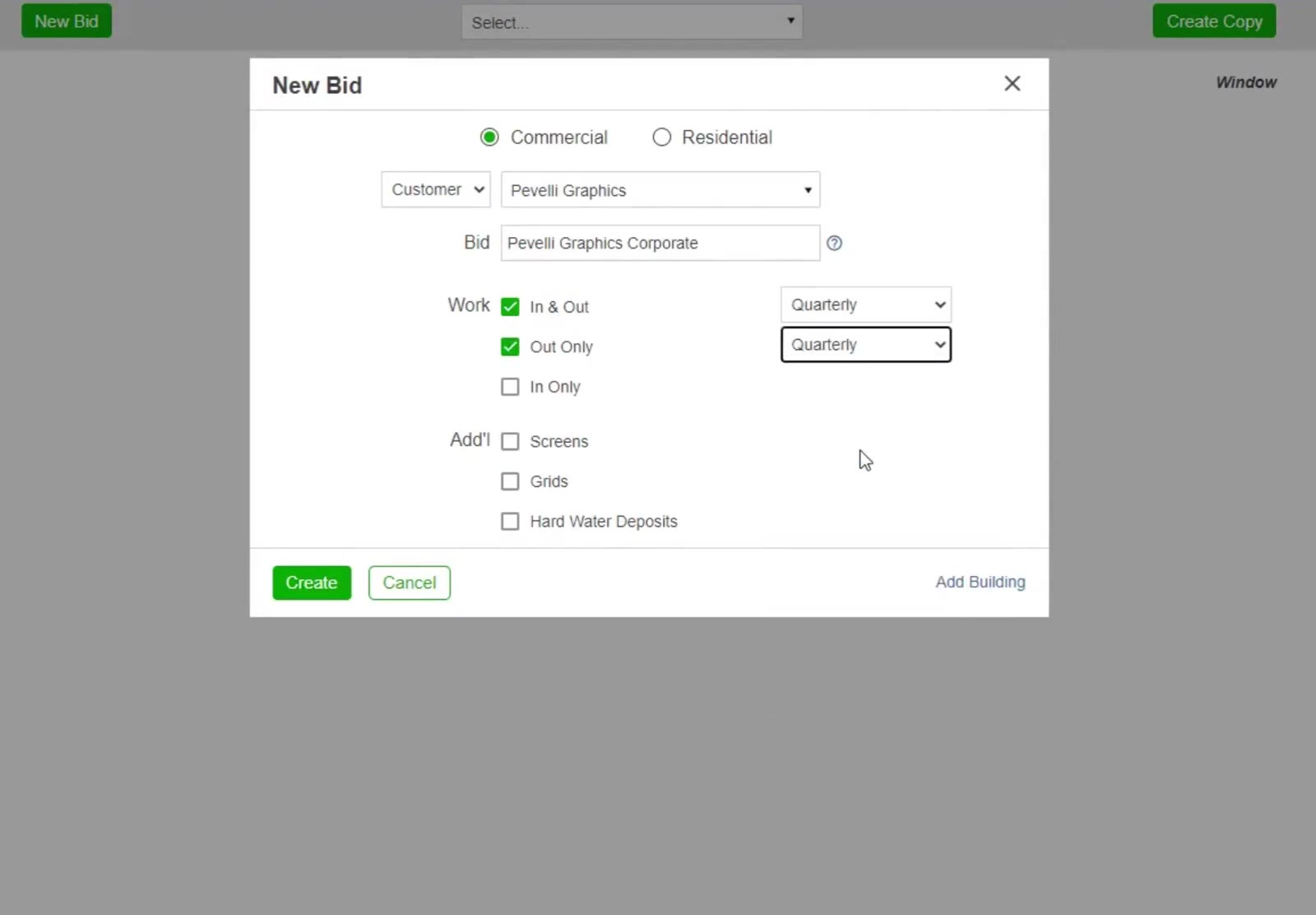
Choose Commercial or Residential, pick Prospect or Customer and select the name, then type a name in the Bid box.
Choose the service and how often
Under Work, tick In & Out, Out Only or In Only — each gets its own frequency dropdown. Under Add’l, tick Screens, Grids or Hard Water Deposits if the job includes them, then click Create.
Count the Panes
Open the Panes tab
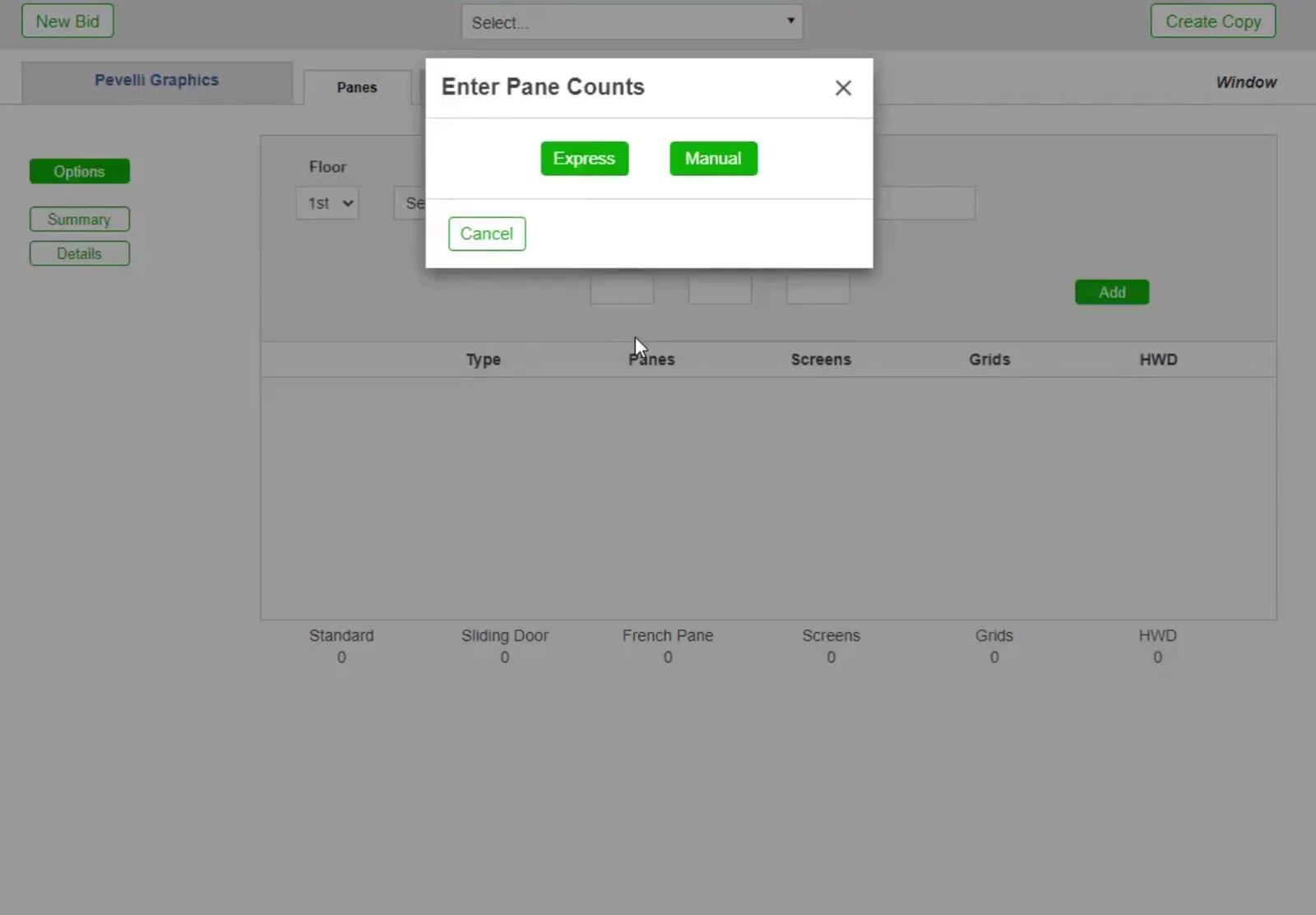
Click Panes. The Enter Pane Counts box appears.
Choose how to enter the counts
Manual adds one line at a time, which is the way this walkthrough goes. Express opens a grid instead — a row for every window type on each floor, with columns for Panes, Screens, Grids and HWD — so you can fill the whole building in at once and click Enter.
Enter the counts floor by floor
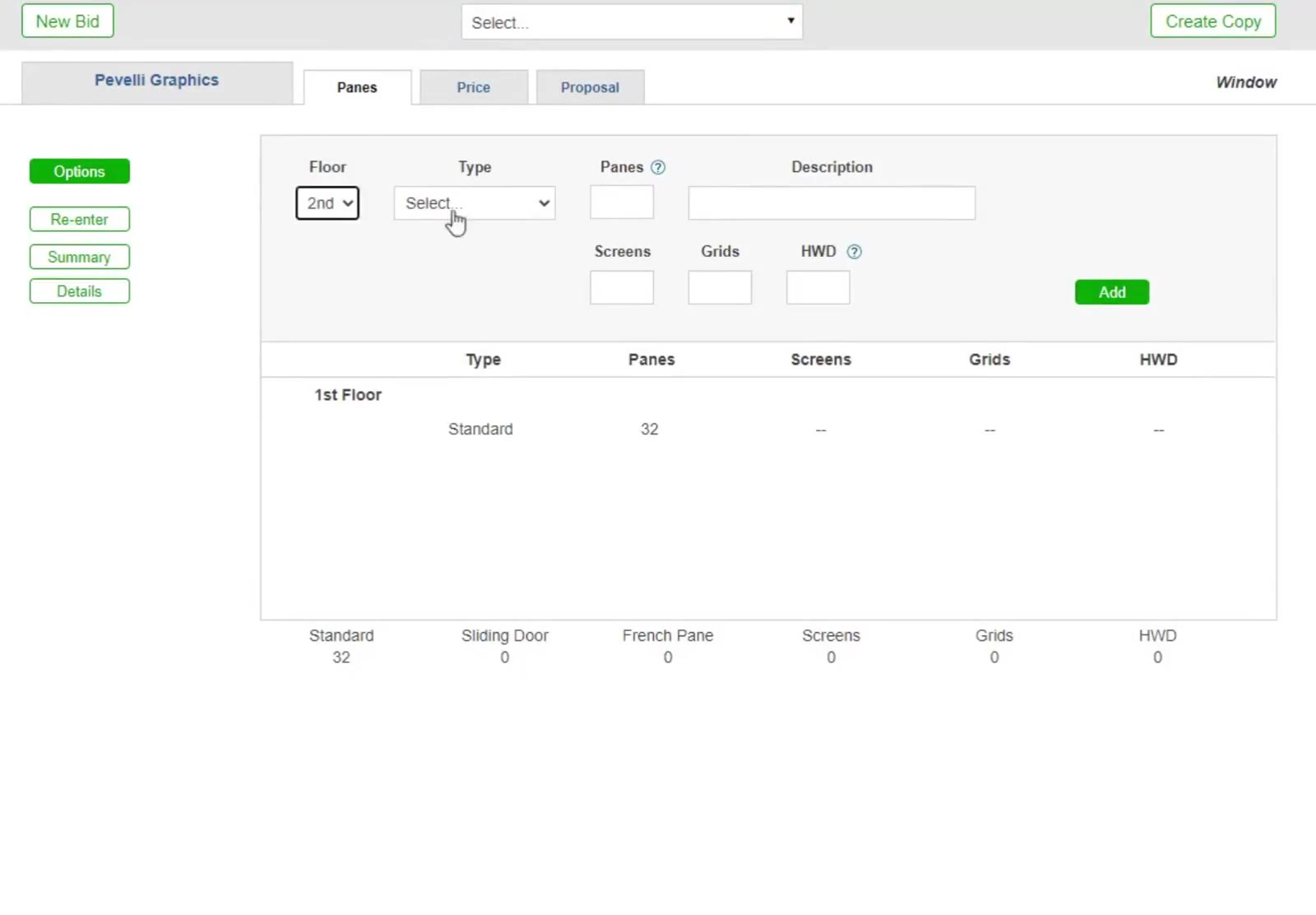
Pick the Floor, choose the window Type — Standard, Sliding Door or French Pane — and type the number of Panes. Add any Screens, Grids or HWD counts, then click Add. Repeat for every floor.
Check the Work Specifications
Open the specifications
On the Panes tab, click the green Options button at the top of the sidebar.
Adjust the task list
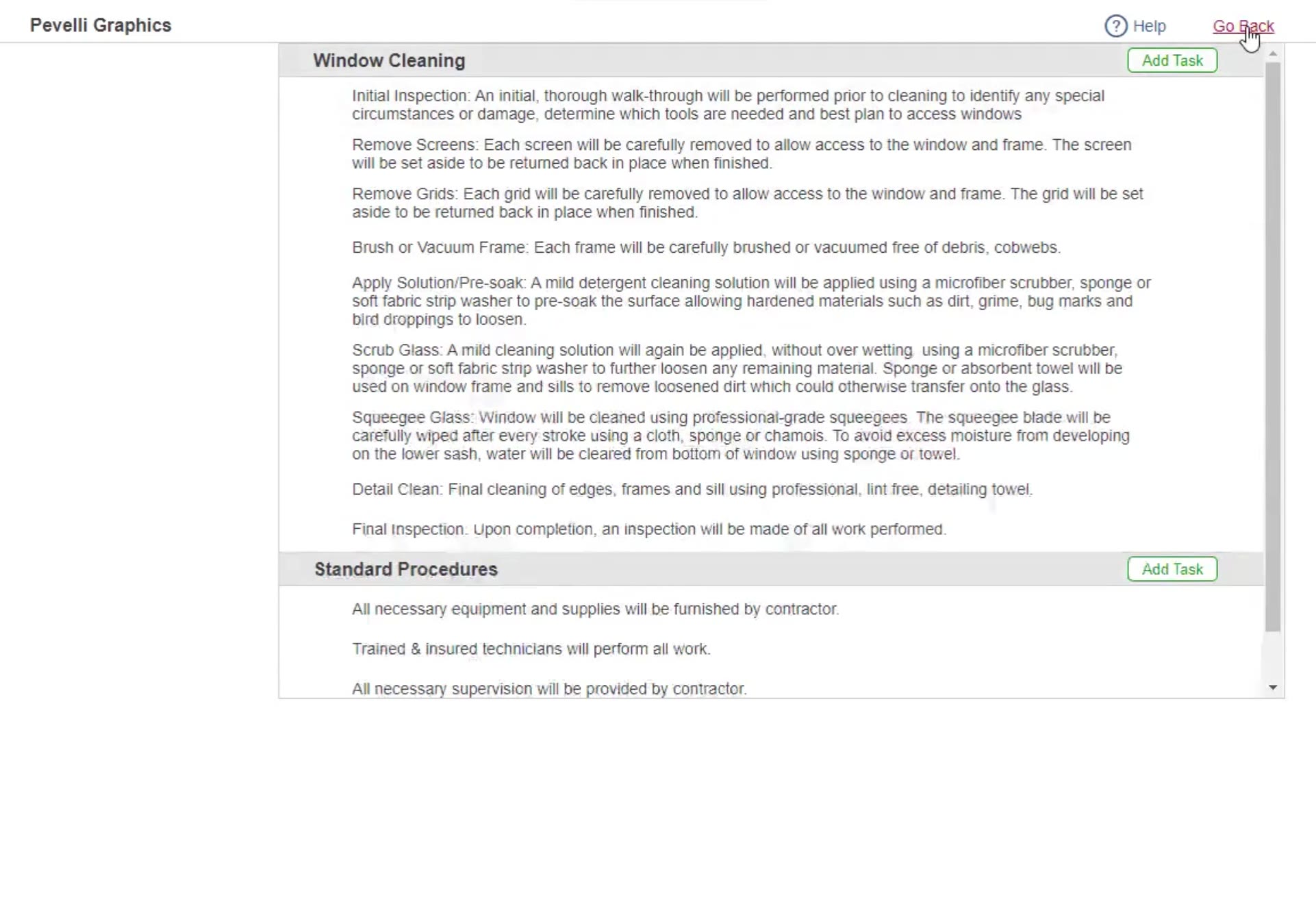
Window Cleaning and Standard Procedures each have their own Add Task button. Click Go Back when you are finished.
Price the Job
Open the Price tab
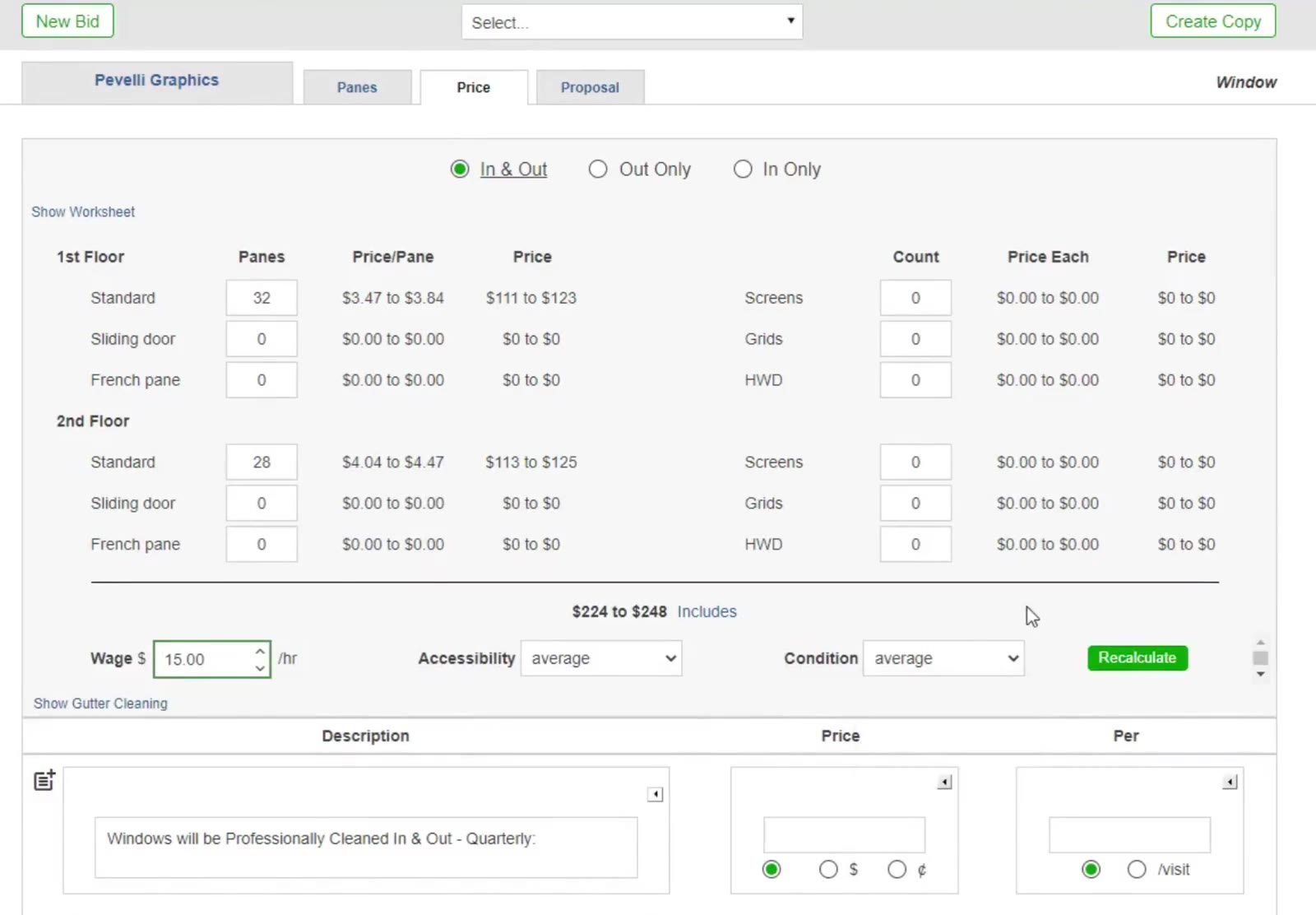
Click Price. The In & Out, Out Only and In Only radio buttons at the top switch between the services you ticked, and each one is priced floor by floor: Panes, Price/Pane and Price, with Count, Price Each and Price for screens, grids and hard water deposits alongside.
Set the pricing factors
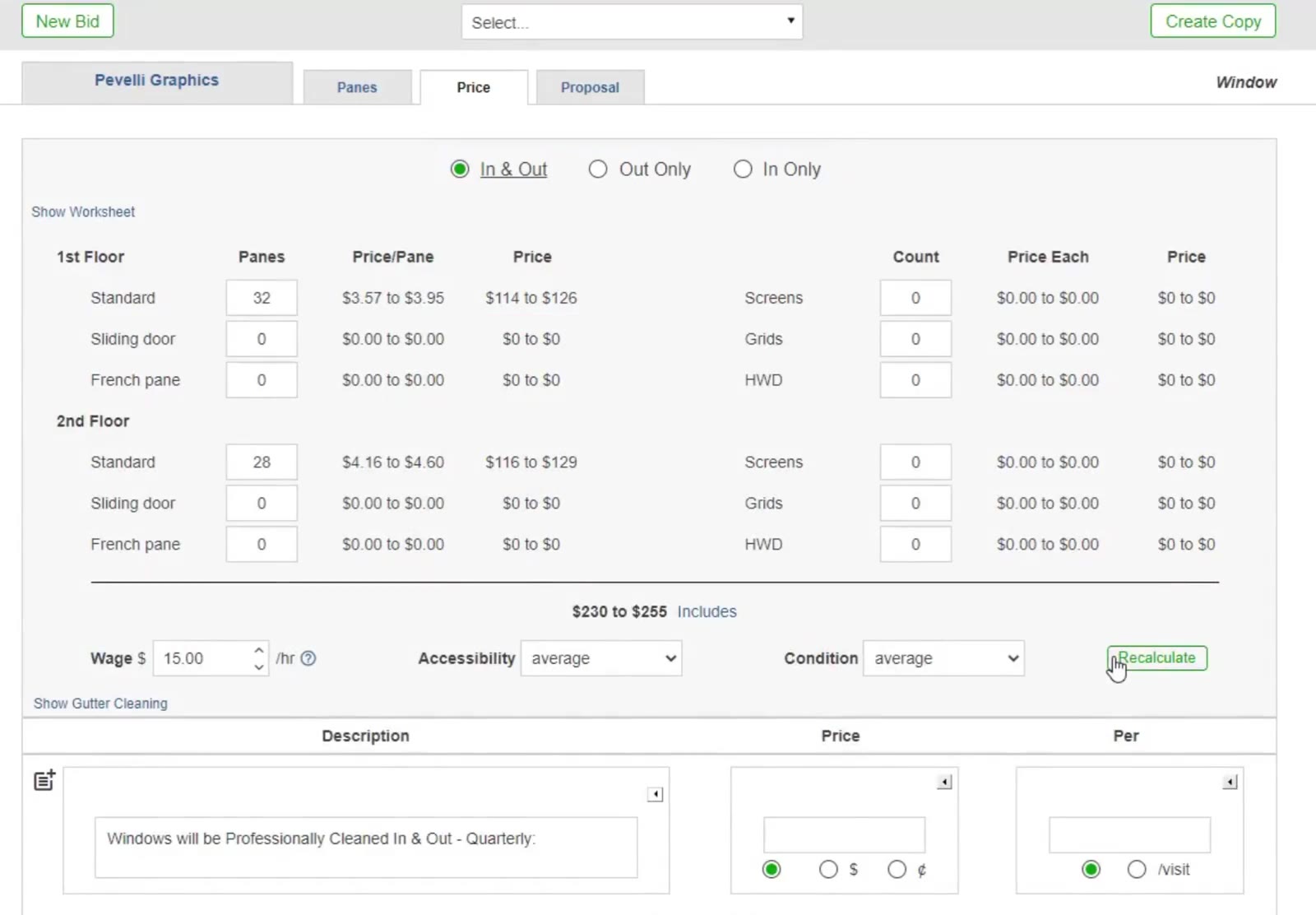
In the footer, enter your hourly rate in Wage $ and set Accessibility — how easy the windows are to reach — and Condition. Click Recalculate to see the new range.
Enter your price
In the Description and Price table underneath, CleanGuru has already written a description for each service you ticked. Type your figure for each one, choose $ or ¢ and /visit, then click Save. To reword a line, click the icon to its left to pick a standard description, or type your own.
Build the Proposal
Choose what the proposal contains
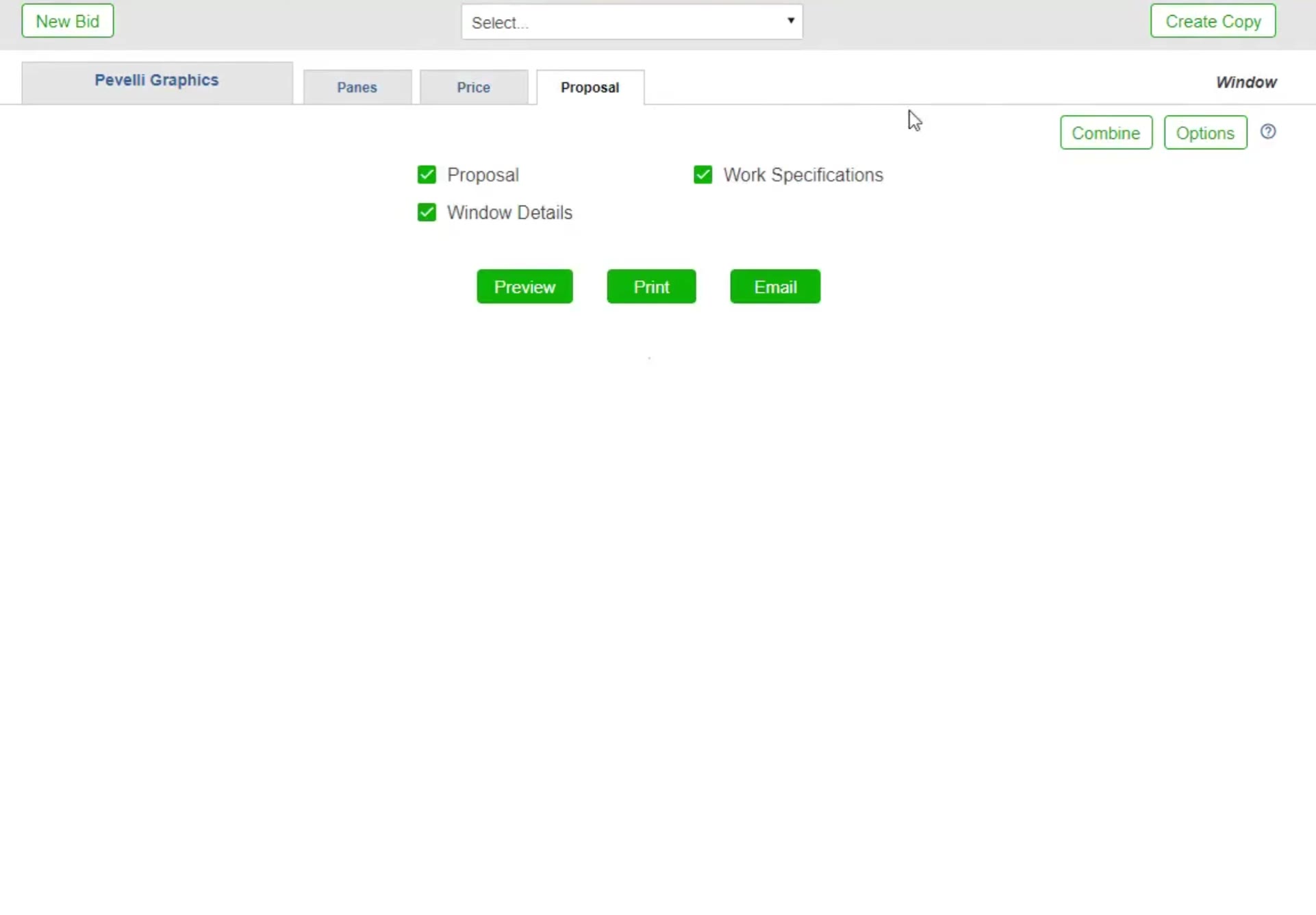
Click Proposal, then tick what to include — Proposal, Window Details and Work Specifications.
Open the section options
Click Options at the top right of the Proposal tab.
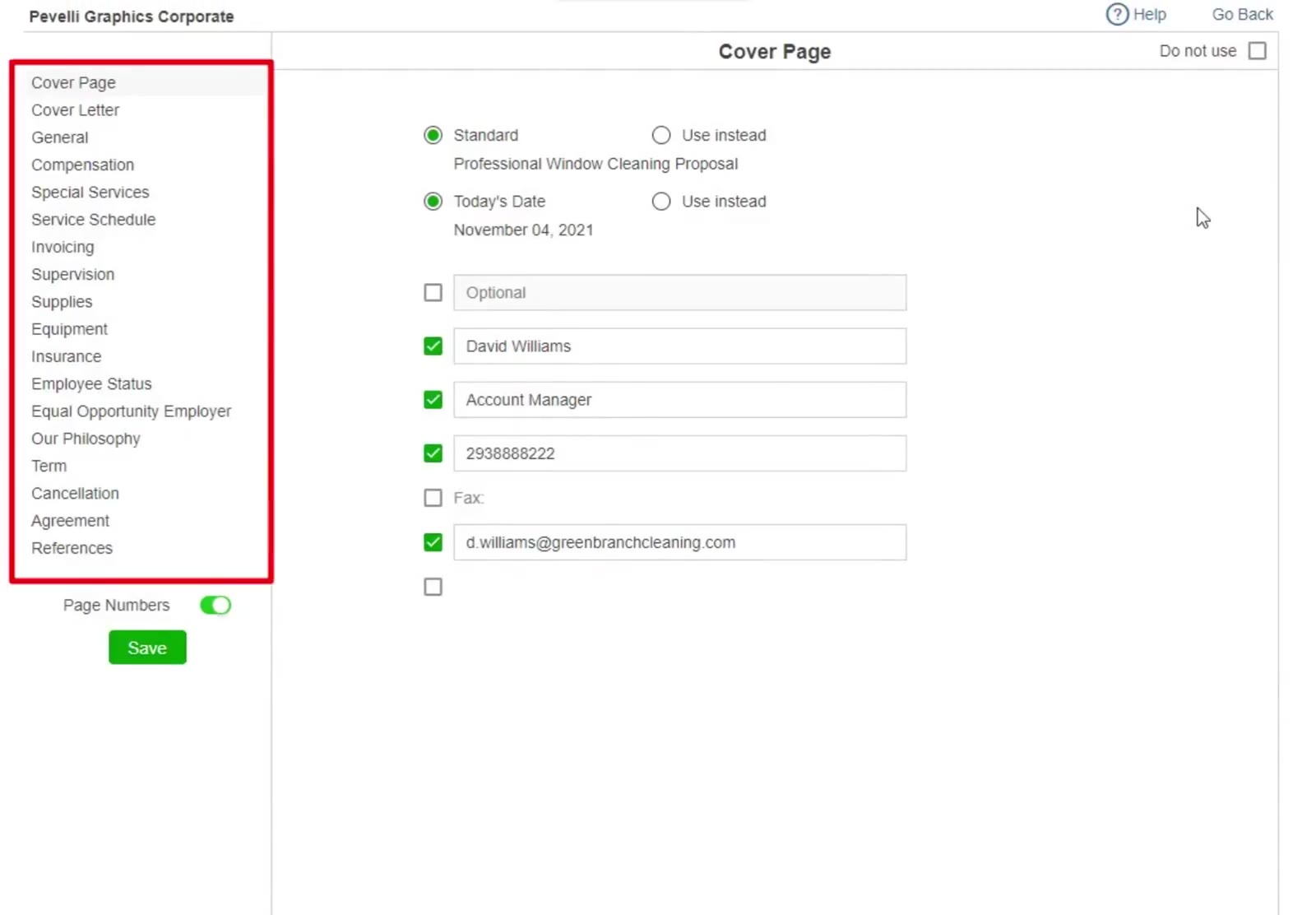
Reword or drop a section
Pick a section in the list on the left — Cover Page, Cover Letter, General, Compensation through to References — to change its wording, or tick Do not use to leave it out of this proposal. Page Numbers switches page numbering on and off. Click the green Save, then Go Back to return to the Proposal tab.
Preview it
Click the green Preview button at the bottom of the Proposal tab.
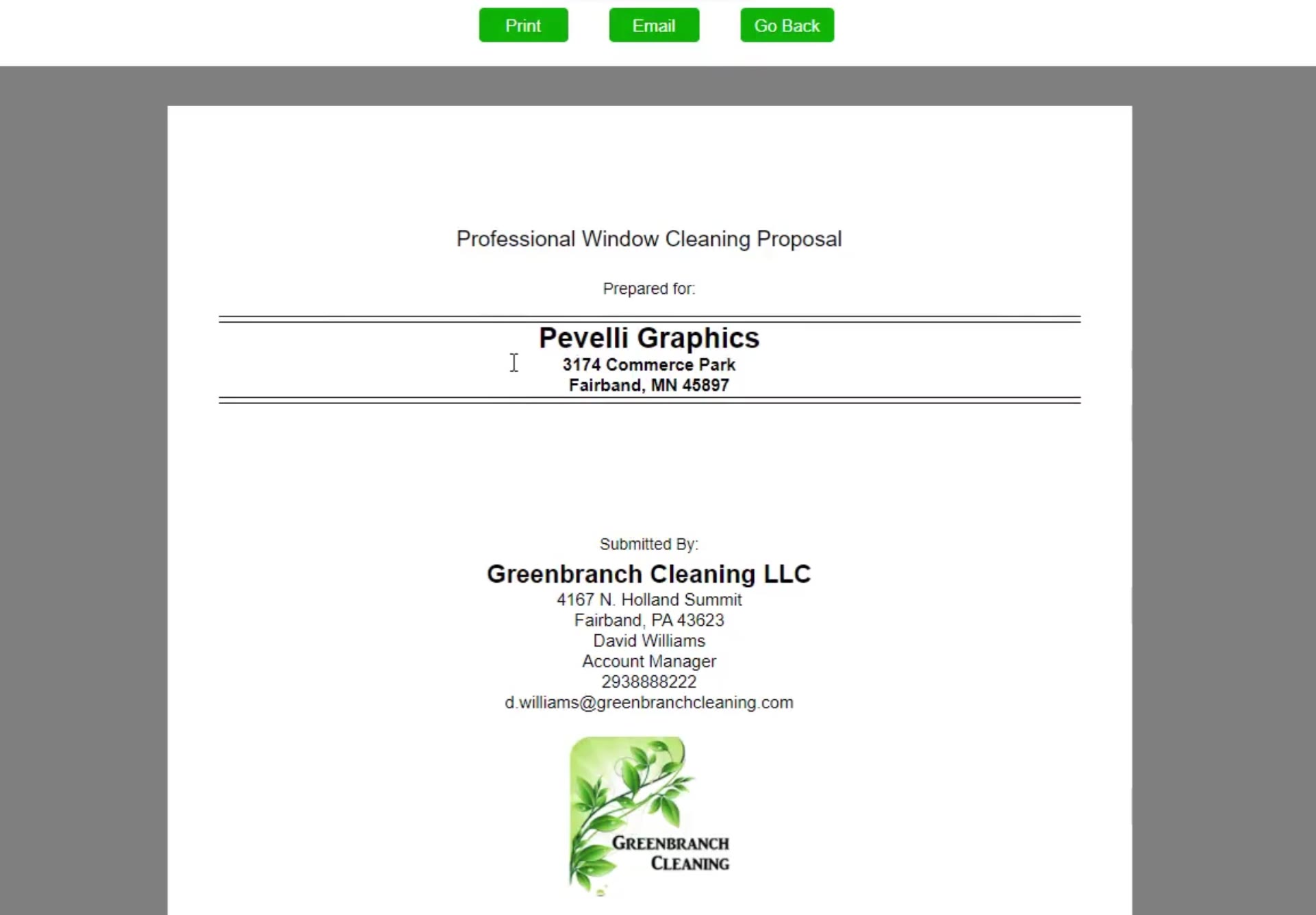
Check the pages
Page through the proposal. The work specifications spell out every step of the clean, from the initial inspection to the final detail.
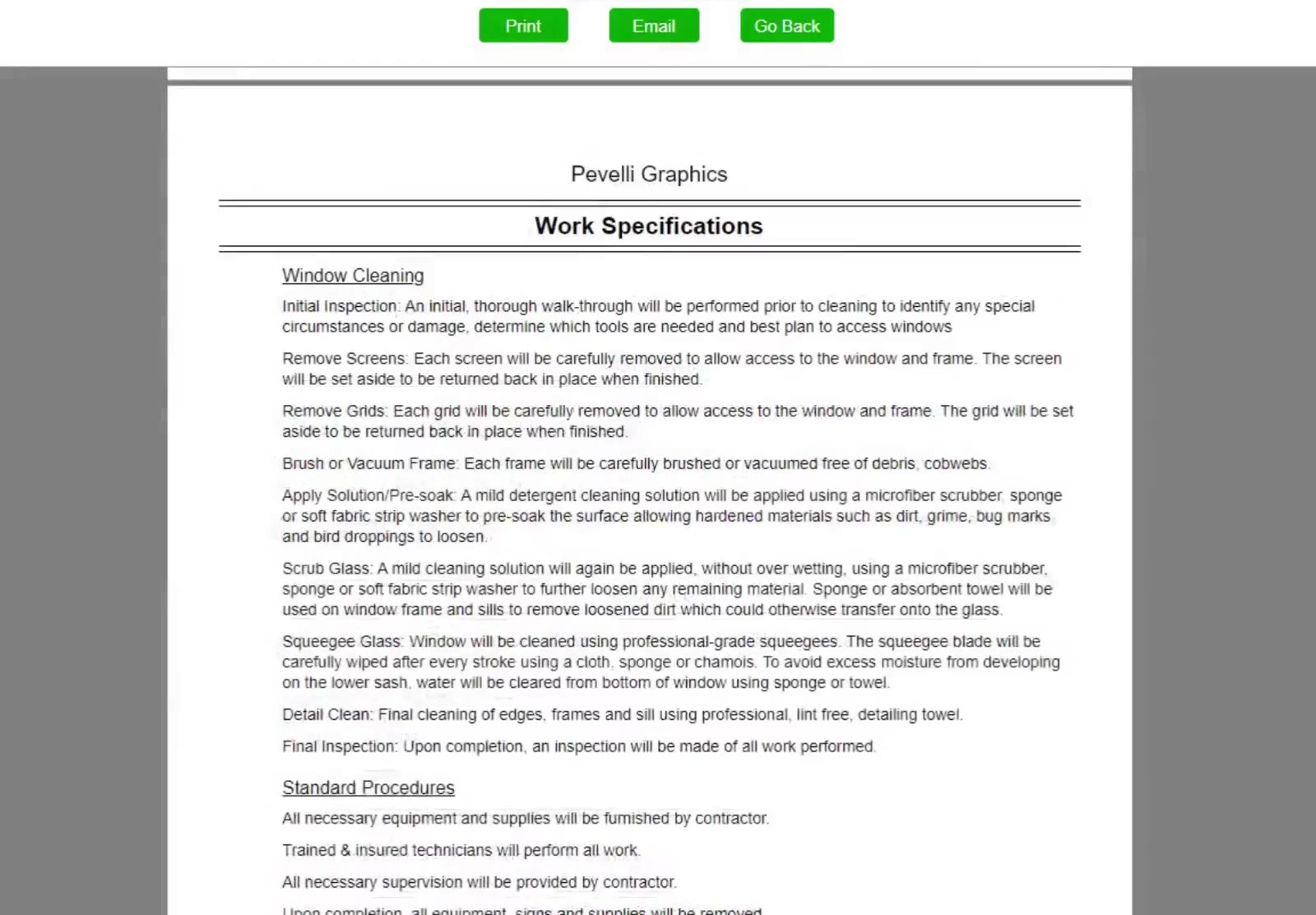
Send it
Click Print or Email at the top, or Go Back to keep editing.
That is a complete window bid: counted, specified, priced for each service and packaged as a proposal you can send. Because CleanGuru prices In & Out, Out Only and In Only side by side, you can offer the customer a choice from the same bid.