
Bidding Help article
Enter Measurements – Express
Express is the quickest way to get a building’s measurements into a bid. You give CleanGuru one number — the building’s total cleanable square footage — and it spreads that across the usual areas for you, so you can price the bid without measuring room by room.
Open the Express Box
Open the measurement box
On the Areas tab of a bid, an Enter Measurements box asks how you want to enter the building’s measurements.
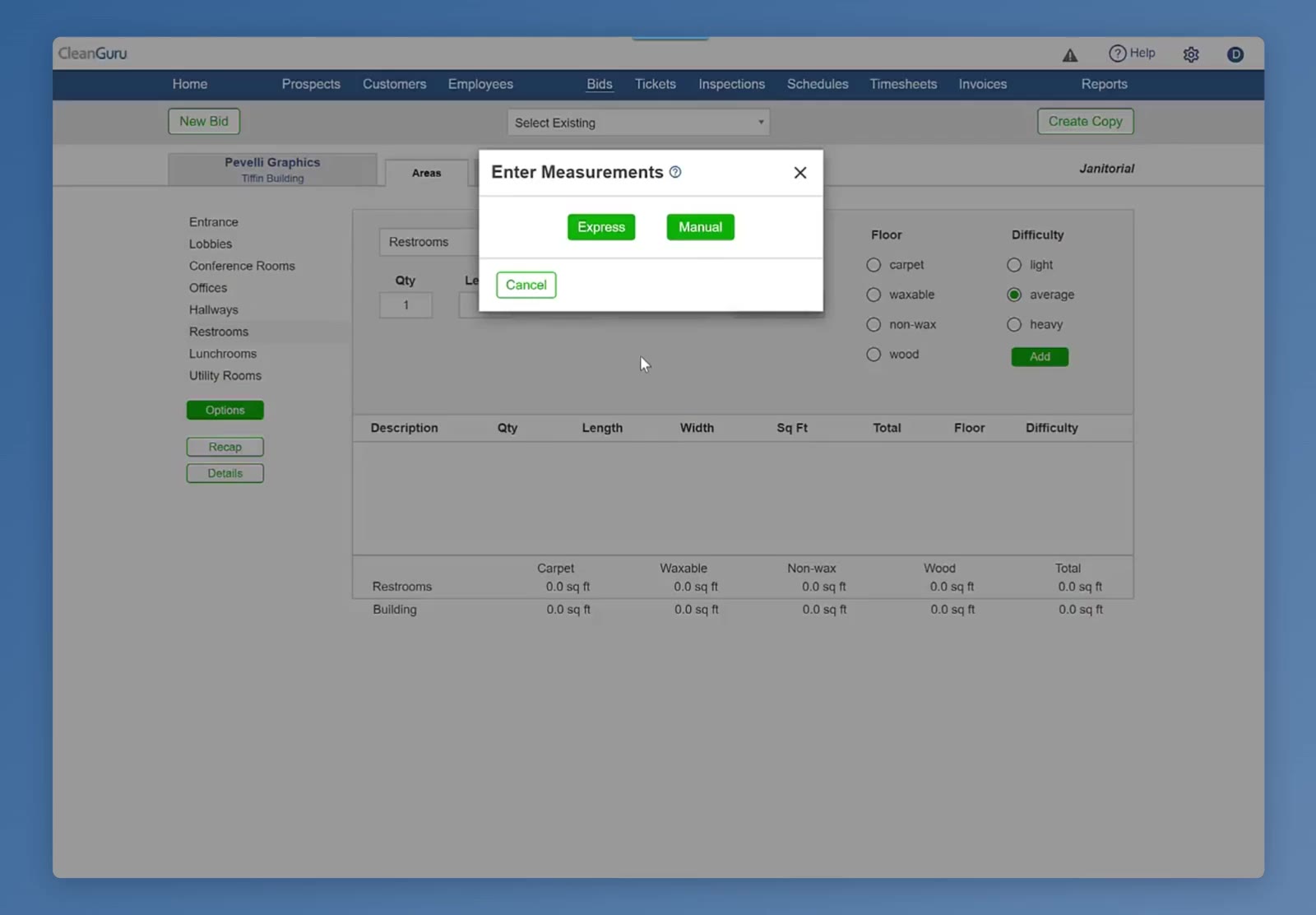
Choose Express
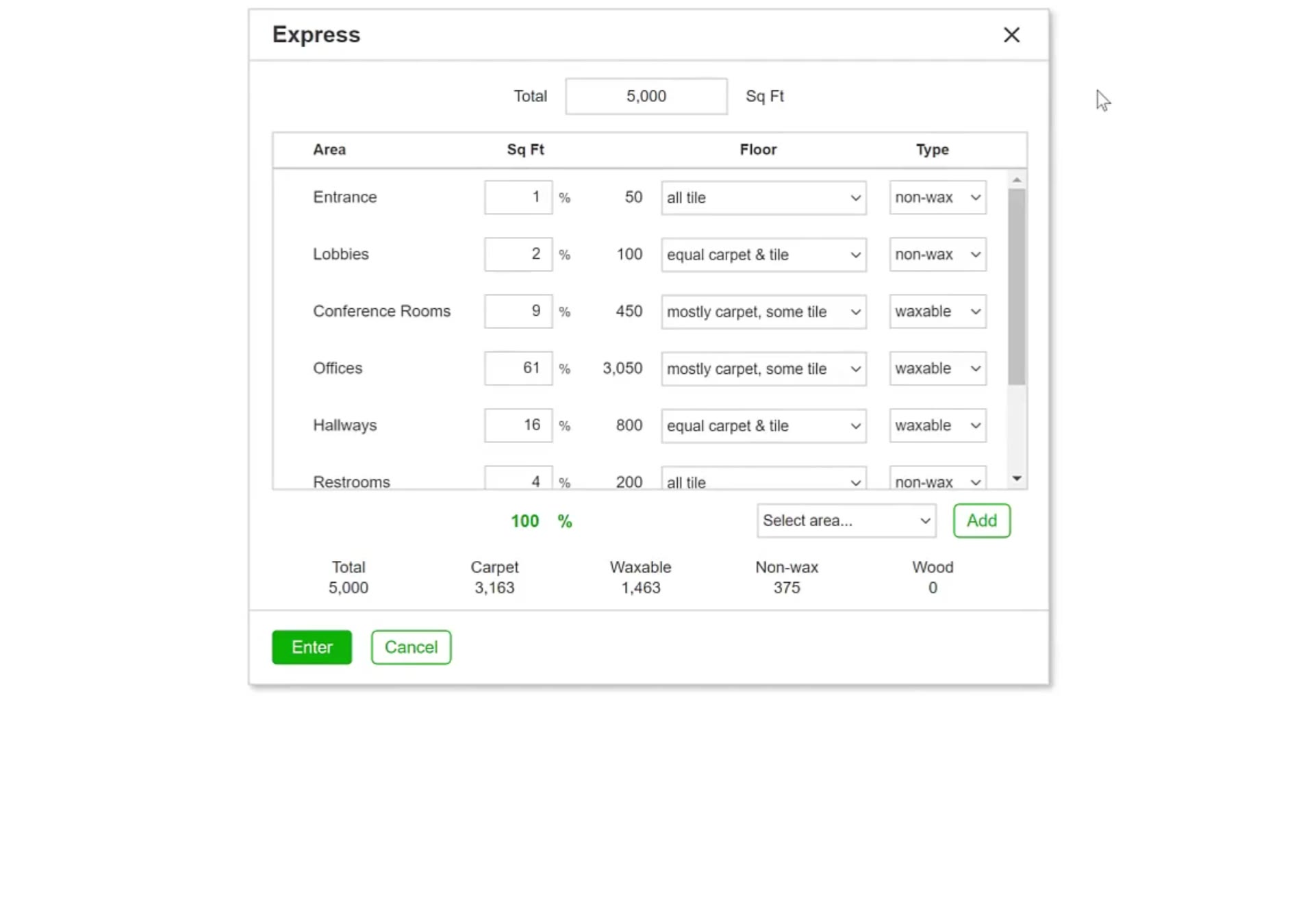
The Express box opens with Total Sq Ft at the top and columns for Area, Sq Ft, Floor and Type.
Enter the Building’s Size
Type the total
Enter the building’s total cleanable square footage in the Total Sq Ft box at the top. CleanGuru spreads that number across the usual areas and fills in a percentage for each one.
Adjust the Mix
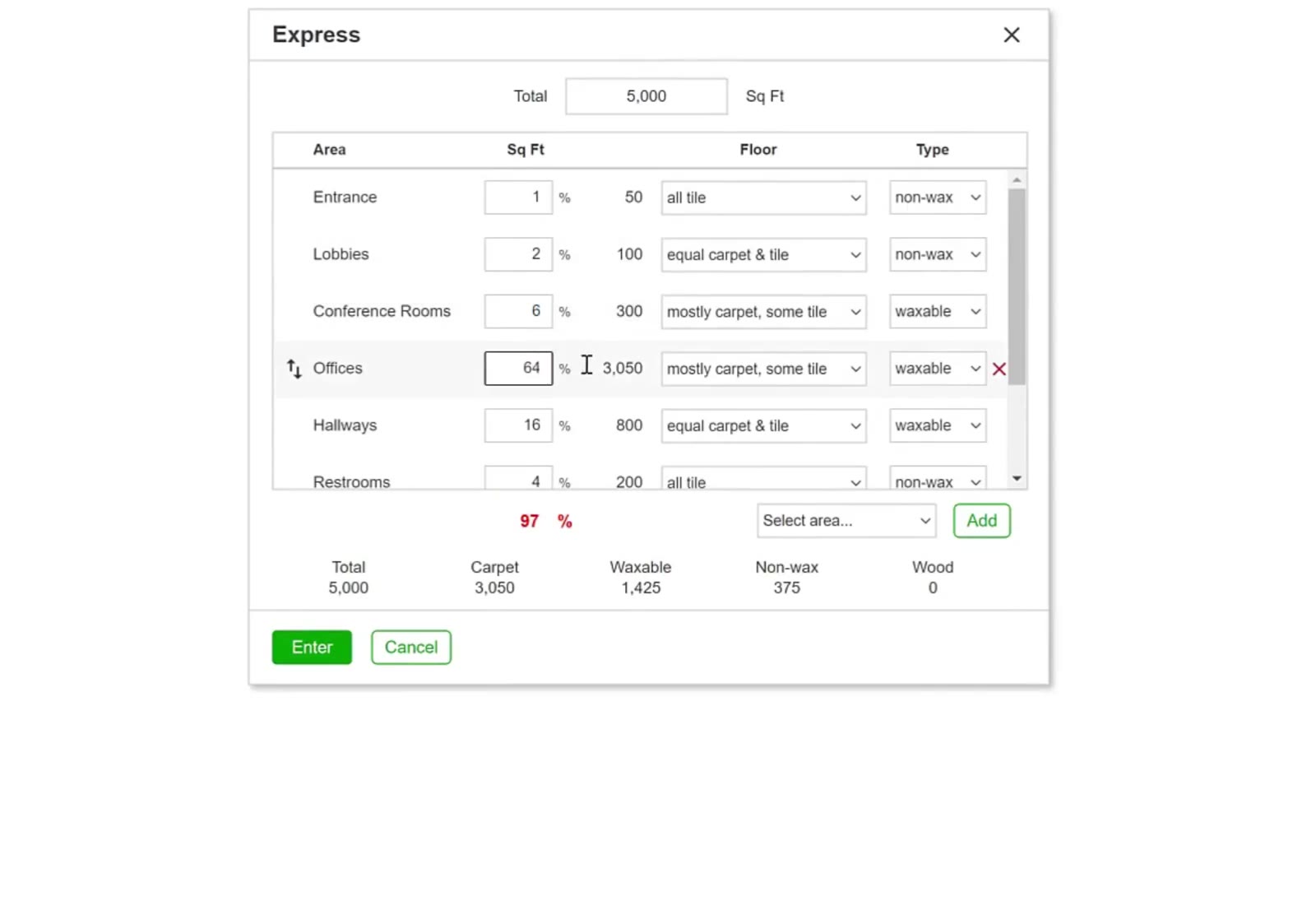
Change a percentage
Type a new percentage in the Sq Ft column for any area and CleanGuru shows the square footage it works out to. The running percentage under the list is red until the areas add up to exactly 100, then turns green.
Set the floor mix
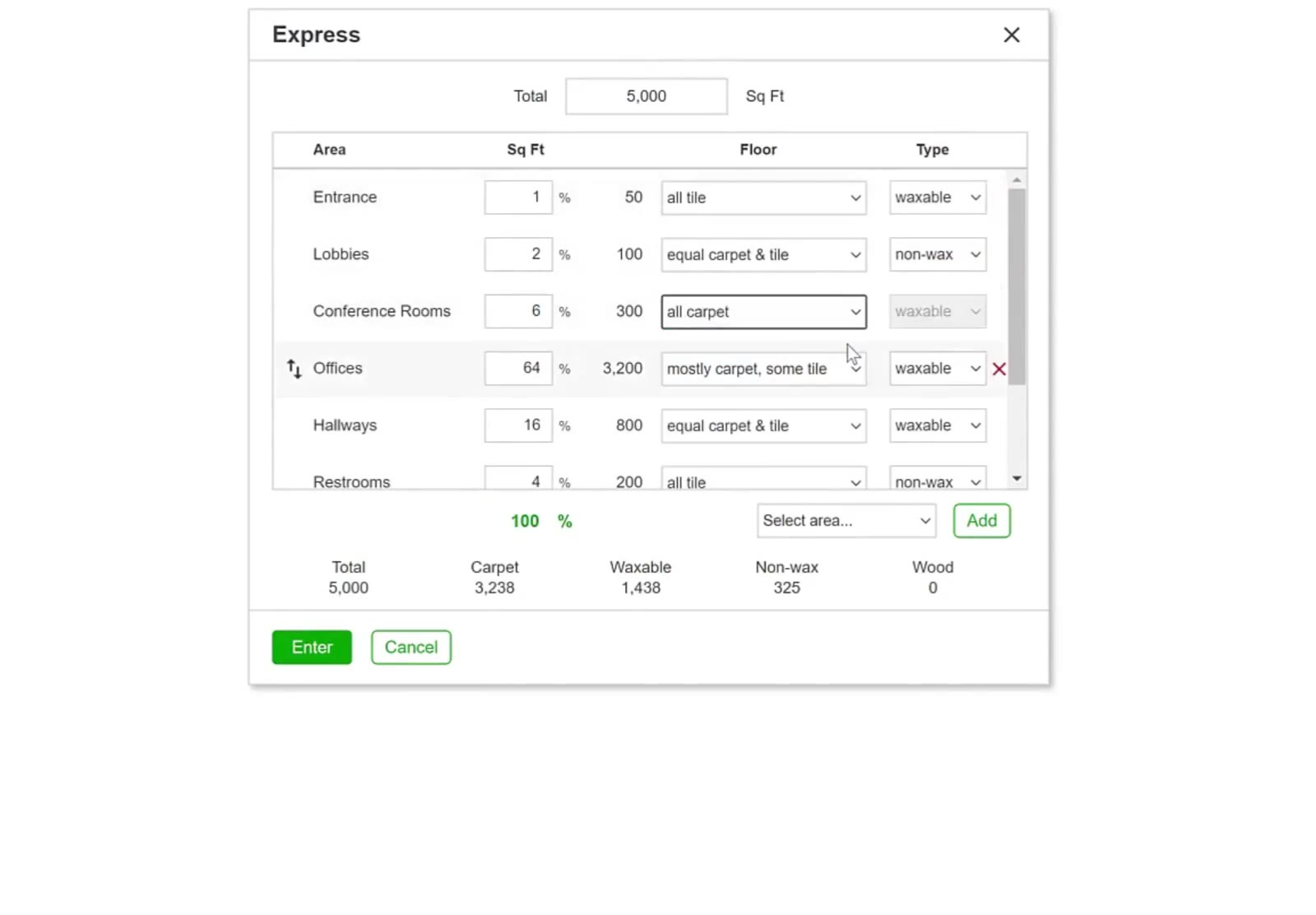
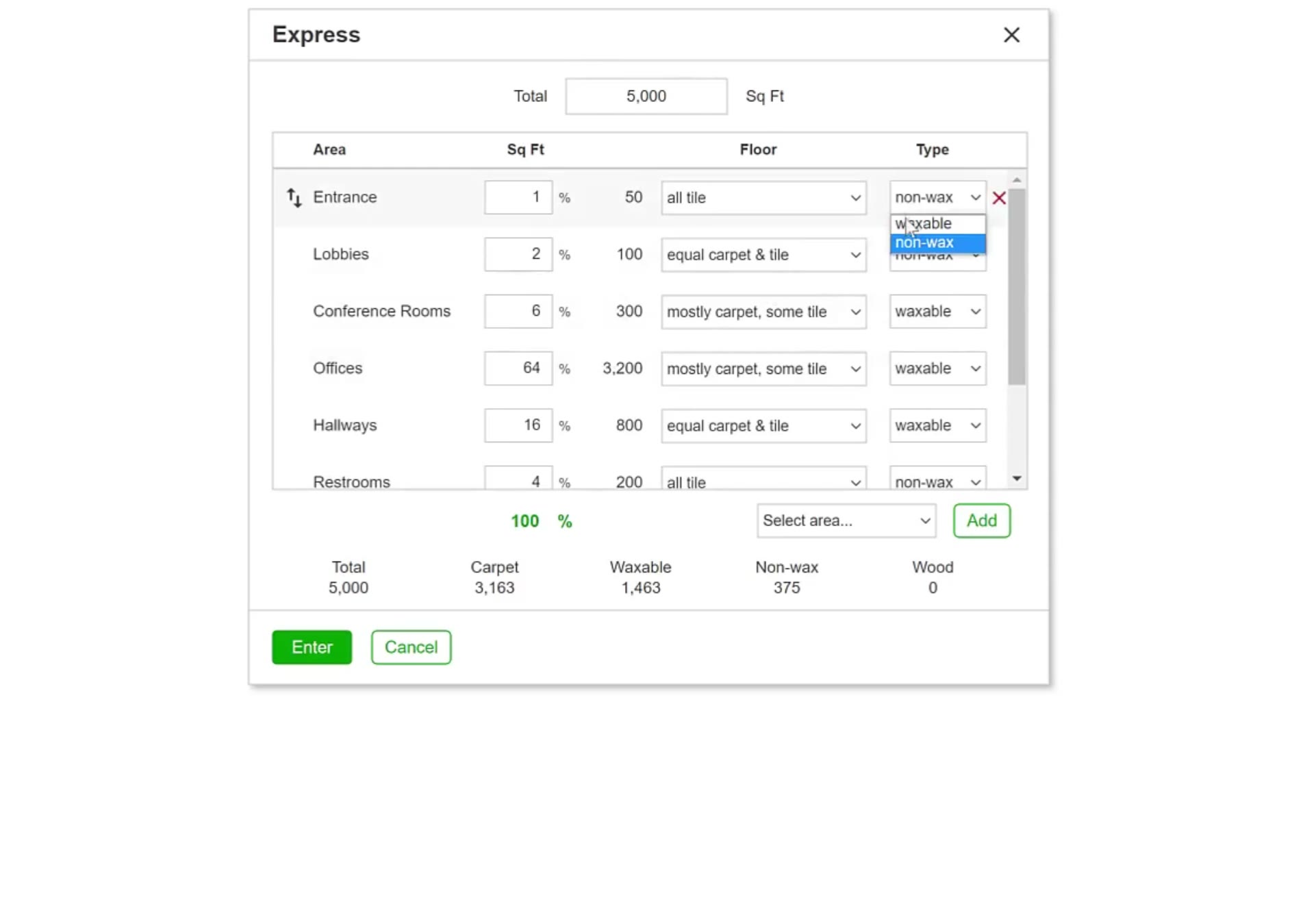
In the Floor column choose how much of the area is carpet — all carpet, mostly carpet some tile, equal carpet & tile, mostly tile some carpet, all tile, or all wood.
Set the hard-floor finish
In the Type column choose waxable or non-wax for the hard floor in that area. The column greys out on any area whose Floor is all carpet or all wood.
Add an area
Pick one from Select area… and click Add. A row you are editing shows a reorder handle and a red X for removing it.
Save the Measurements
Check the totals and save
The totals under the list — Total, Carpet, Waxable, Non-wax and Wood — show how the square footage divides. Click the green Enter button to write the measurements onto the bid, or Cancel to close without saving.
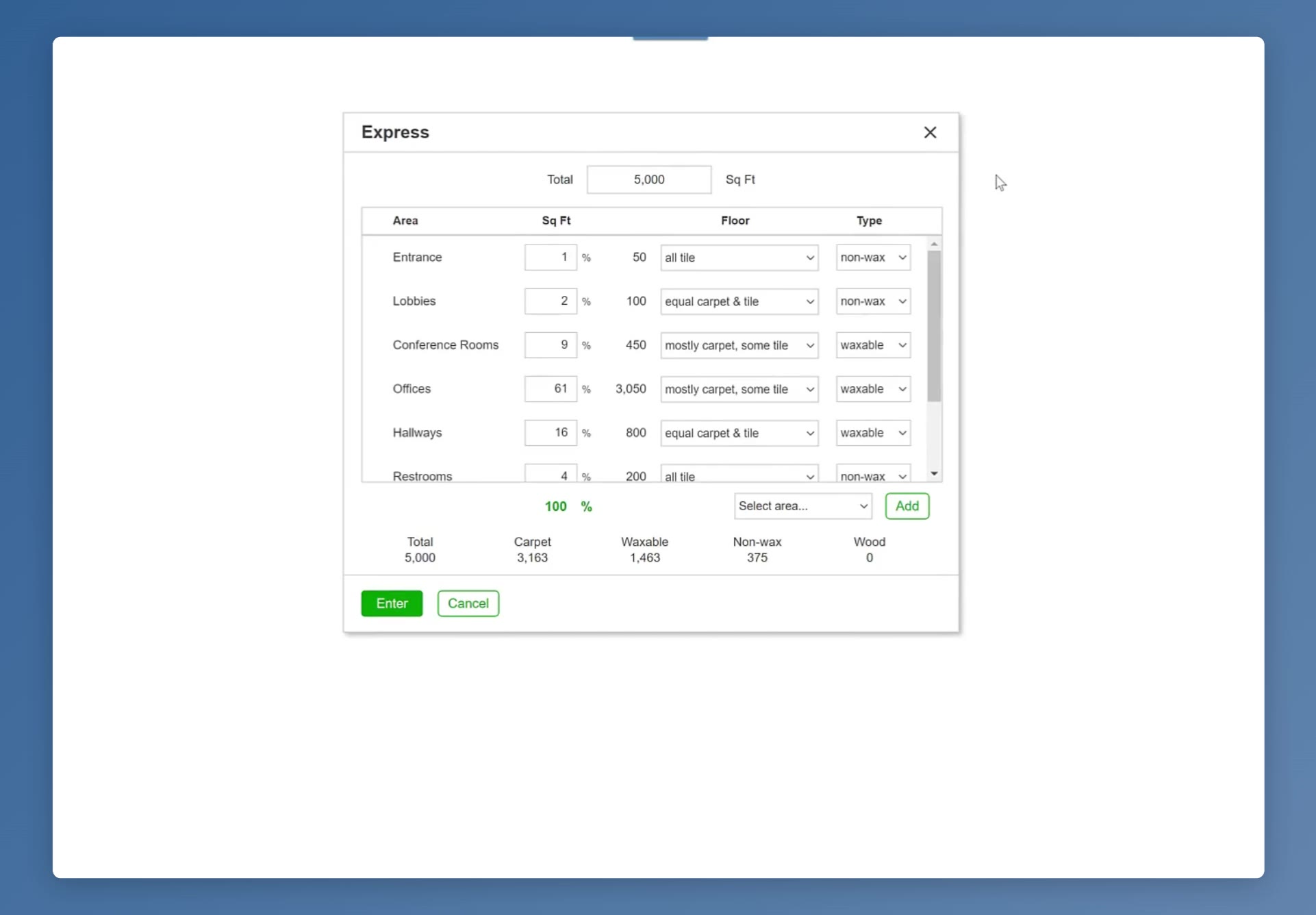
Click Enter and the areas and their square footage appear on the Areas tab, ready for tasks and pricing.