
Timekeeping Help article
Set Up Geofence
A geofence is a boundary you draw around a customer’s site so CleanGuru can tell whether a cleaner was actually there when they checked in or out. You draw it on a map, either as a shape you trace yourself or as a circle around the address, and it belongs to that customer’s location. Setting one up is a job for a staff/support user with full access to schedules.
Opening the Geofence Map
Open the customer
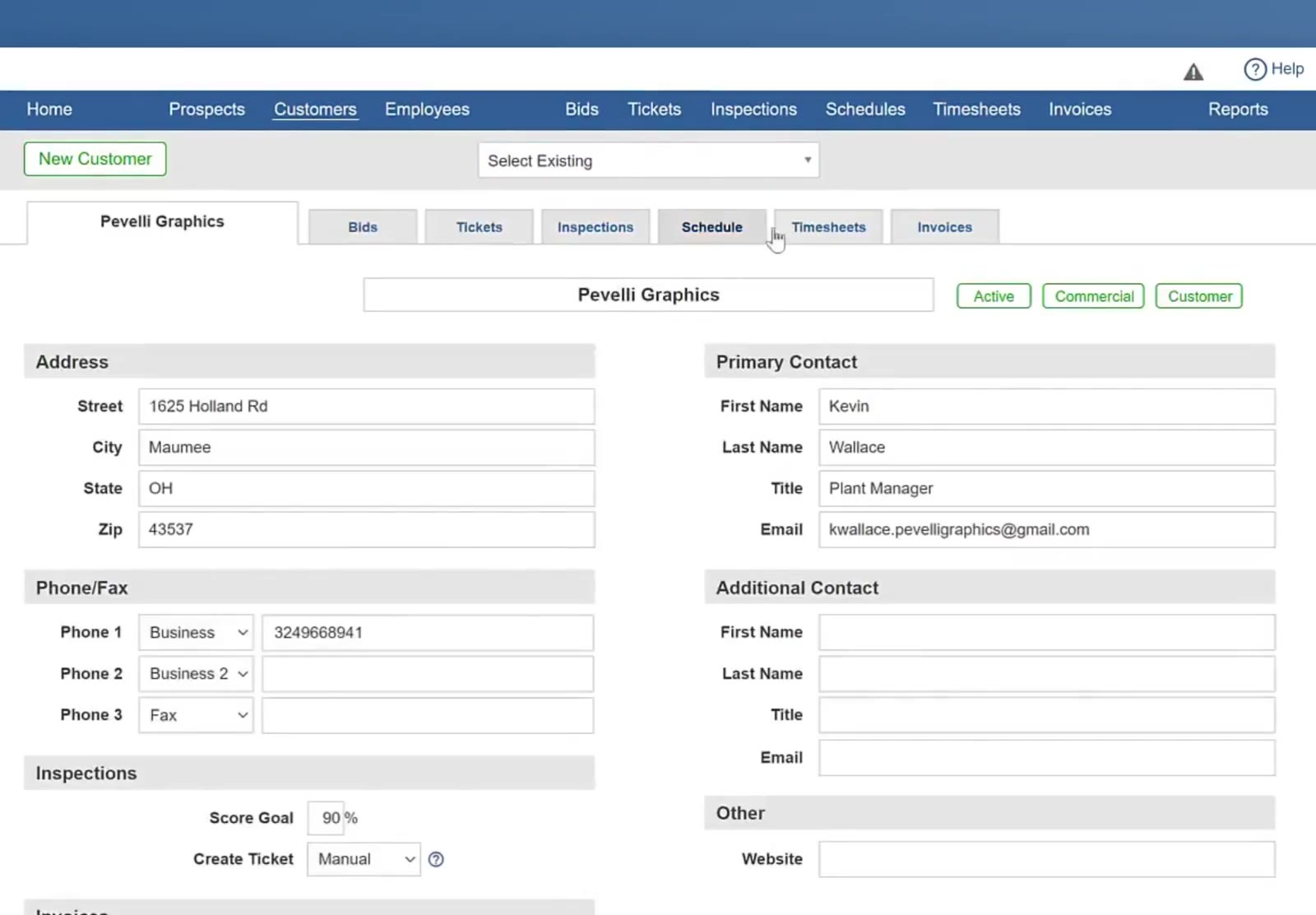
Click Customers in the top navigation bar and pick the customer from Select Existing.
Open Timesheets
On the customer record, click the Timesheets tab.
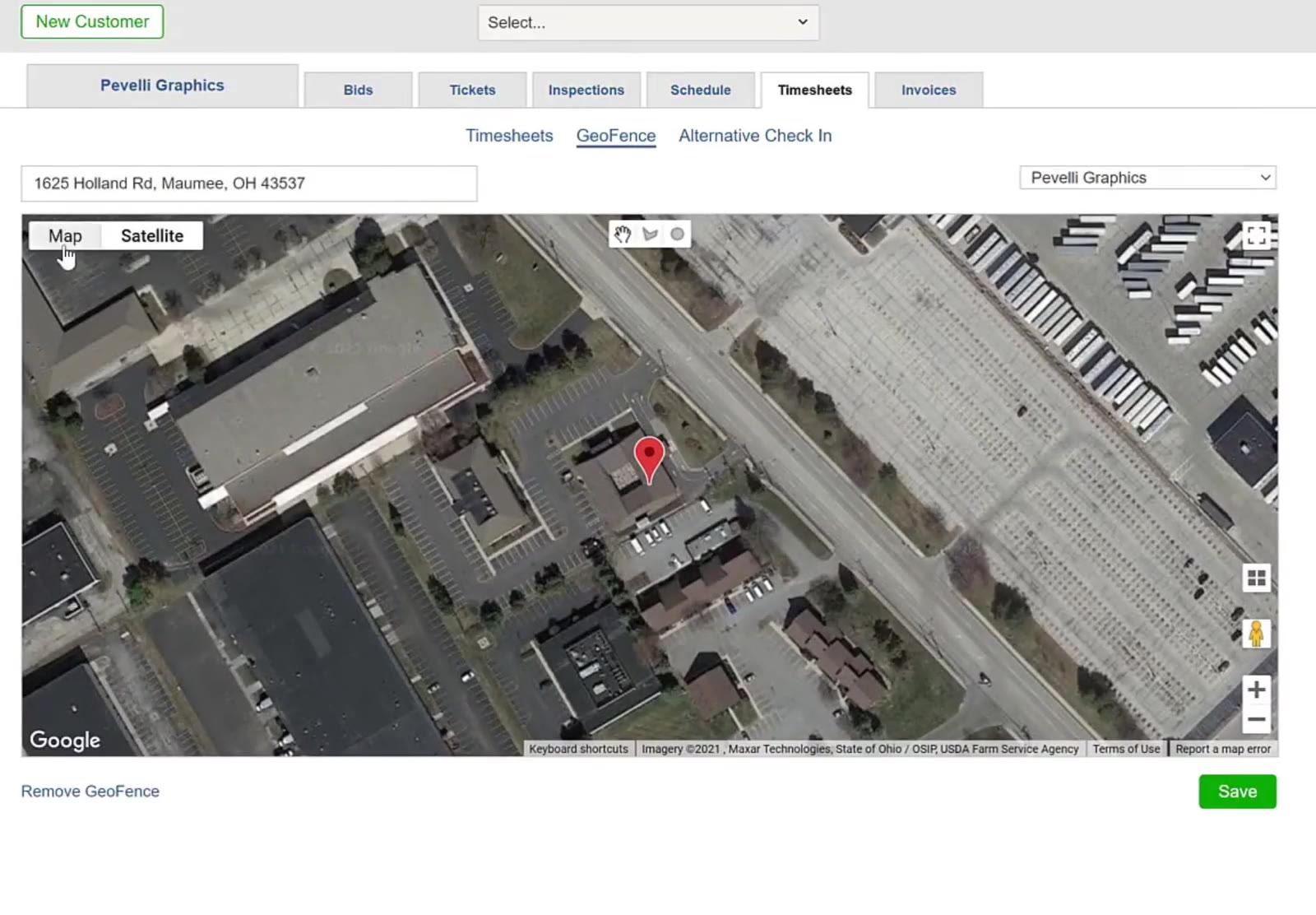
Open GeoFence
Click GeoFence — it sits between Timesheets and Alternative Check In. The map opens on a satellite view with a red pin at the address held on the customer record.
Drawing a Shape
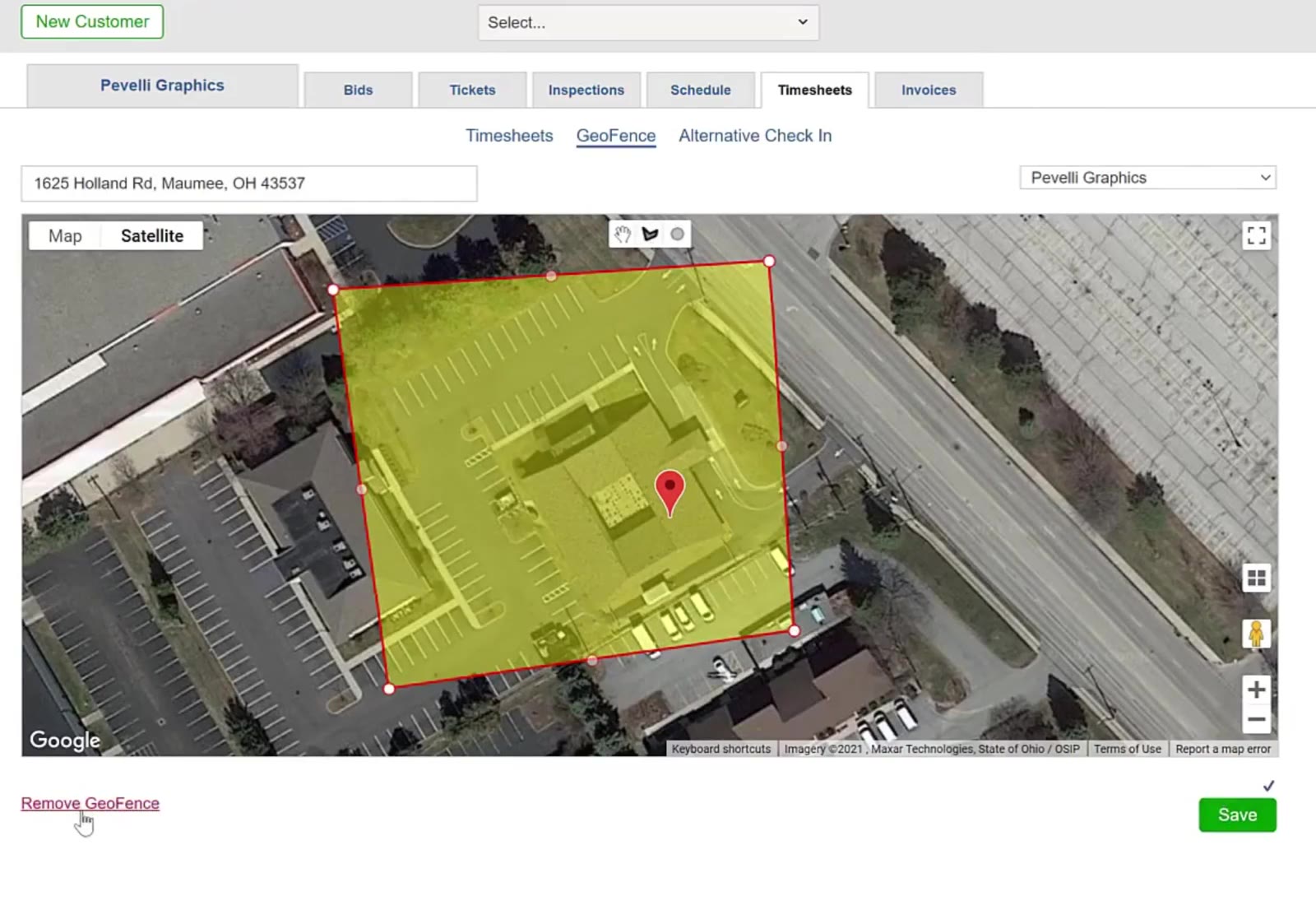
A traced shape suits a site with an awkward outline — one building in a complex, or a building and the yard beside it.
Frame the site
Zoom or drag the map until the whole area you want to cover is in view.
Pick the shape tool
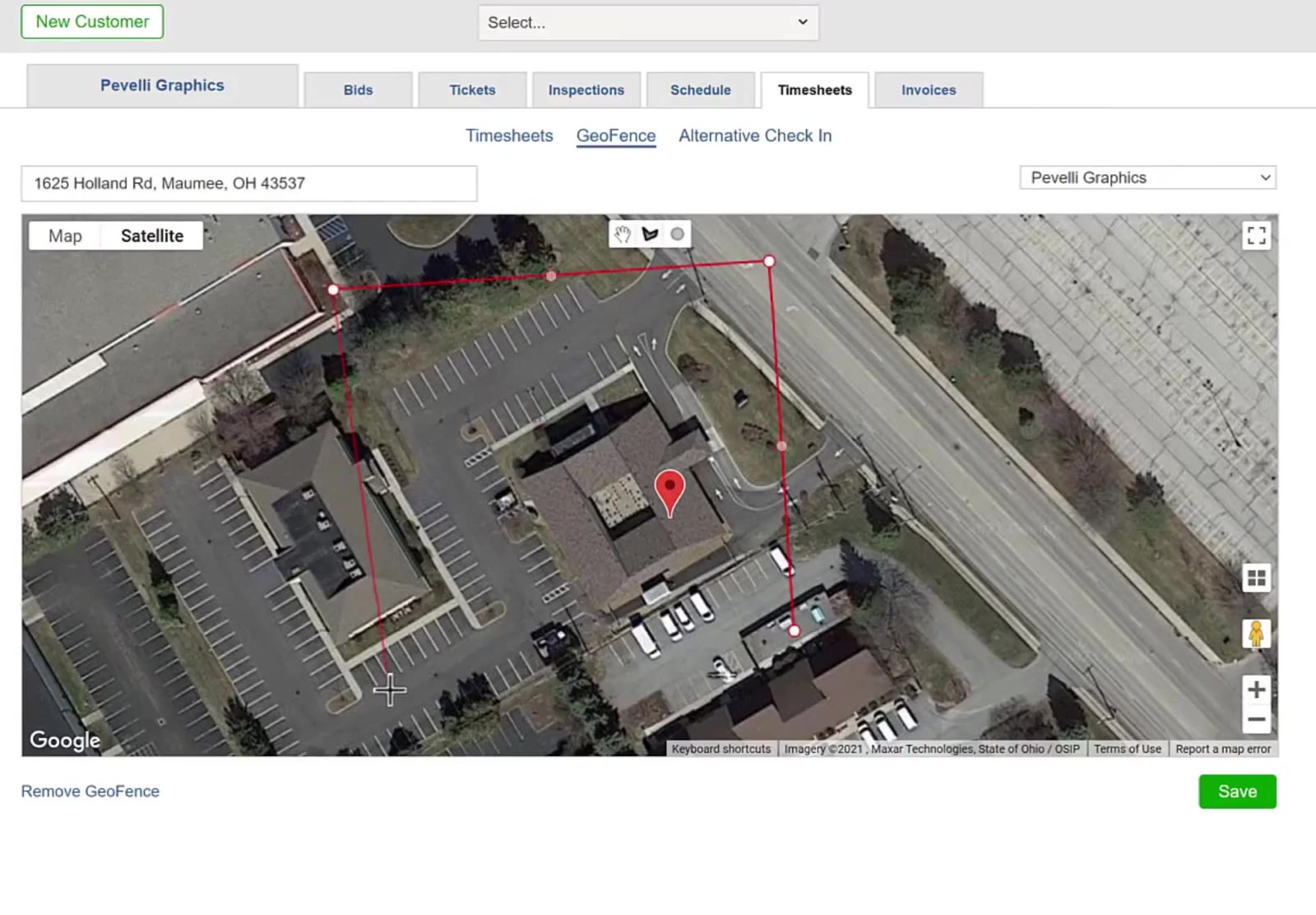
Click the Draw a shape icon at the top of the map.
Click the corners
Click each corner of the area in turn, then click the first point again to close the shape.
Save it
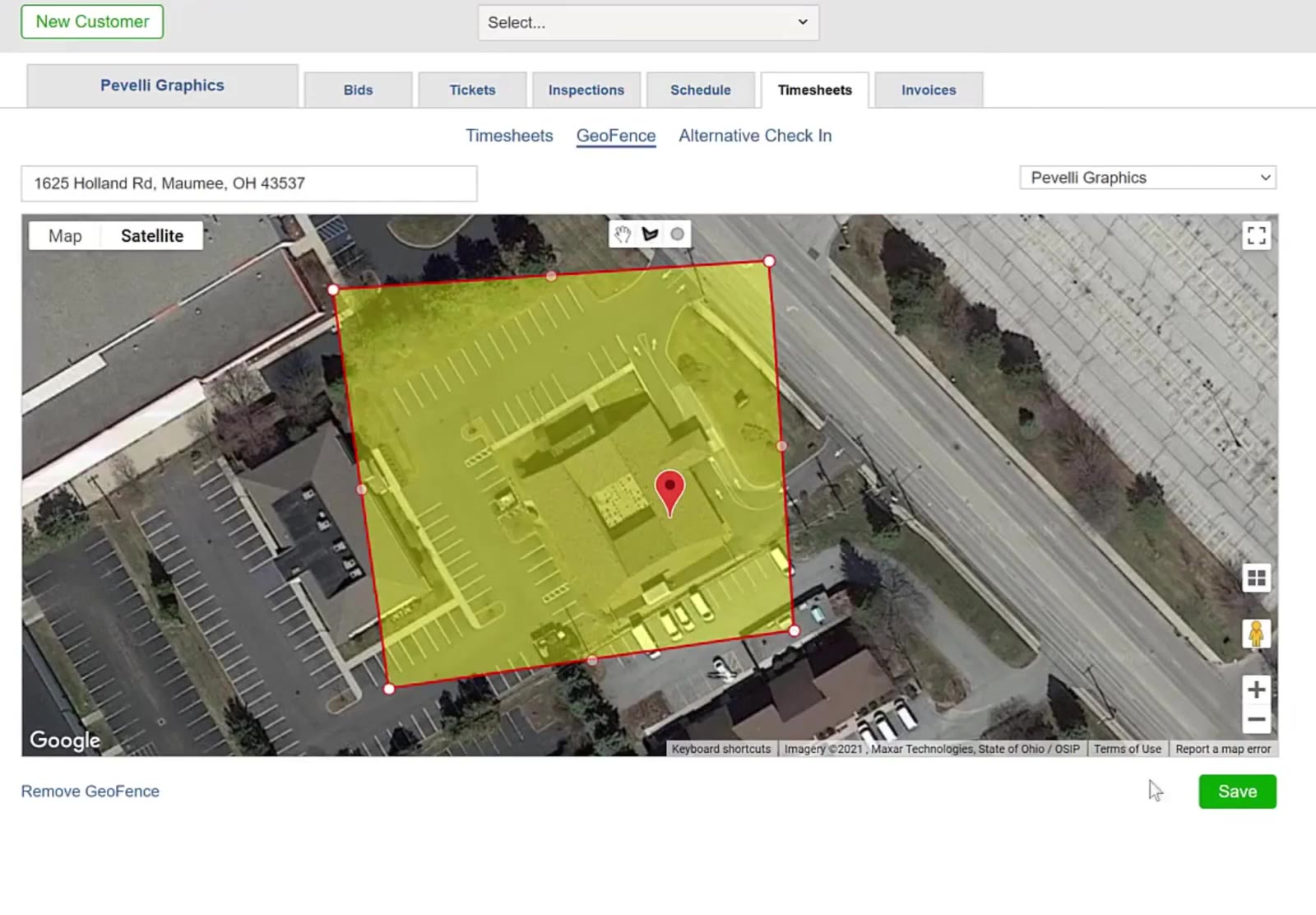
The enclosed area fills yellow. Click the green Save.
Drawing a Circle
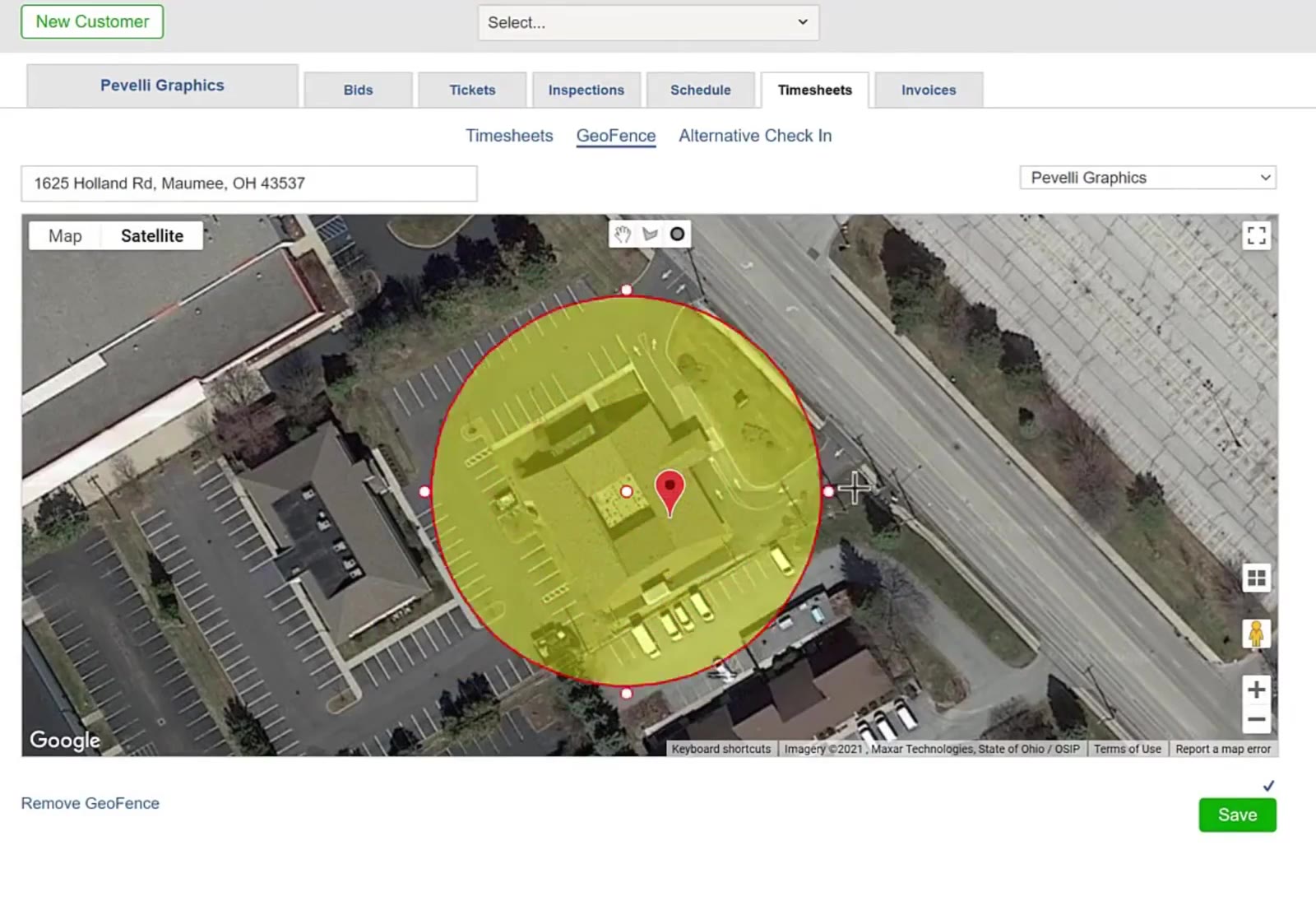
A circle is quicker when a radius around the address covers the site well enough.
Clear the old one if you are changing shape
Click Remove GeoFence at the bottom left and confirm with OK.
Pick the circle tool
Click the Draw a circle icon at the top of the map.
Set the radius
Click where the centre should be, then drag outwards until the circle covers the area you want.
Save it
Click the green Save.
With a geofence saved, CleanGuru can tell whether a check-in or check-out happened on site.