Scheduling Help article
Use Day View
Manage your daily cleaning operations using the CleanGuru Day View to visually track team availability, assign tickets via drag-and-drop, and adjust job durations in real-time. This interface allows you to navigate the daily schedule and filter views by employee type to efficiently coordinate your staff’s workload.
Navigate the Day View
Open the Day View
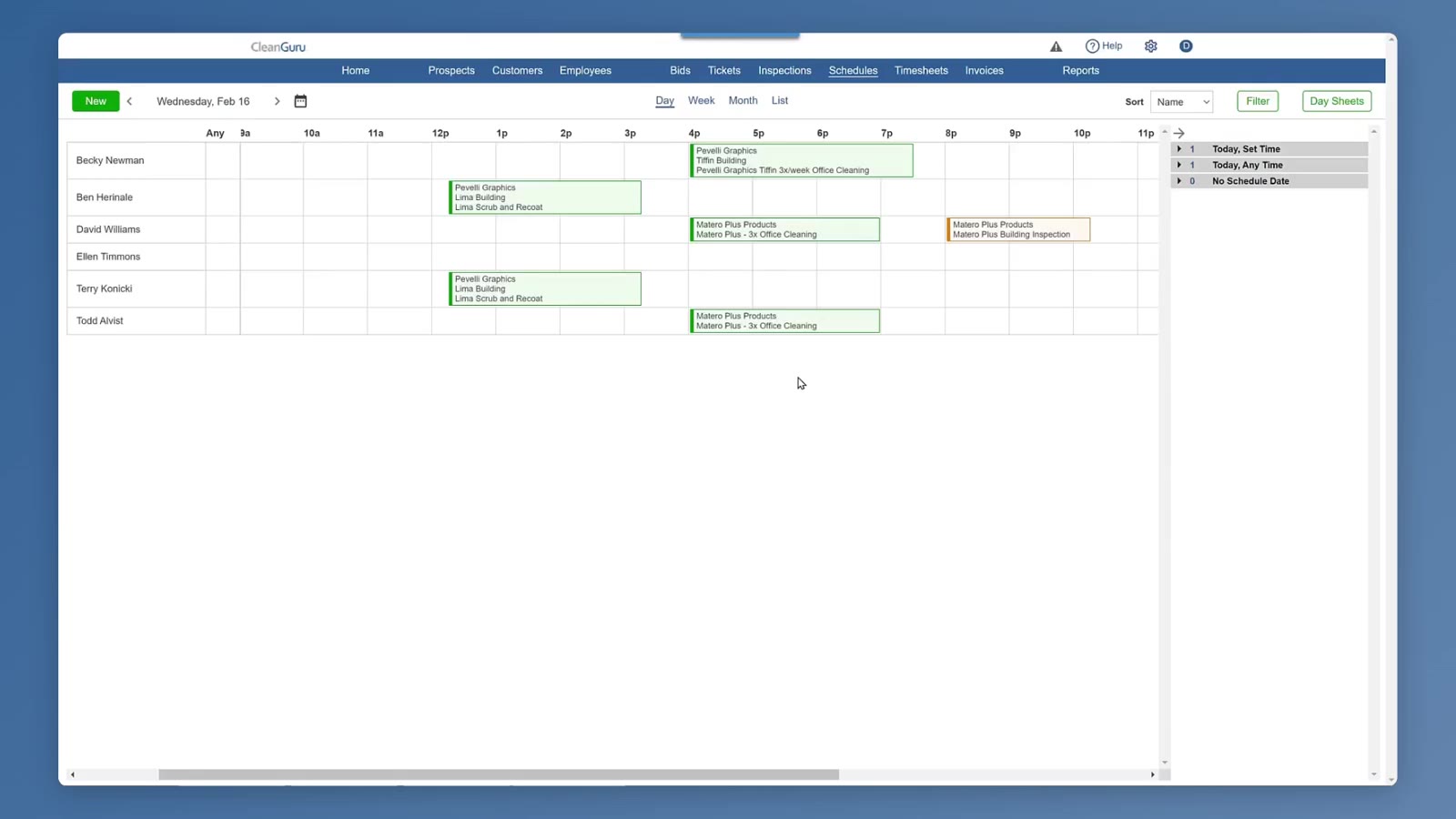
In the main navigation bar, click Schedules, then click the Day link below the primary navigation menu.
Choose a date
Click the Calendar icon or use the Arrows in the top-left corner of the schedule area to navigate to a specific day.
Apply filters
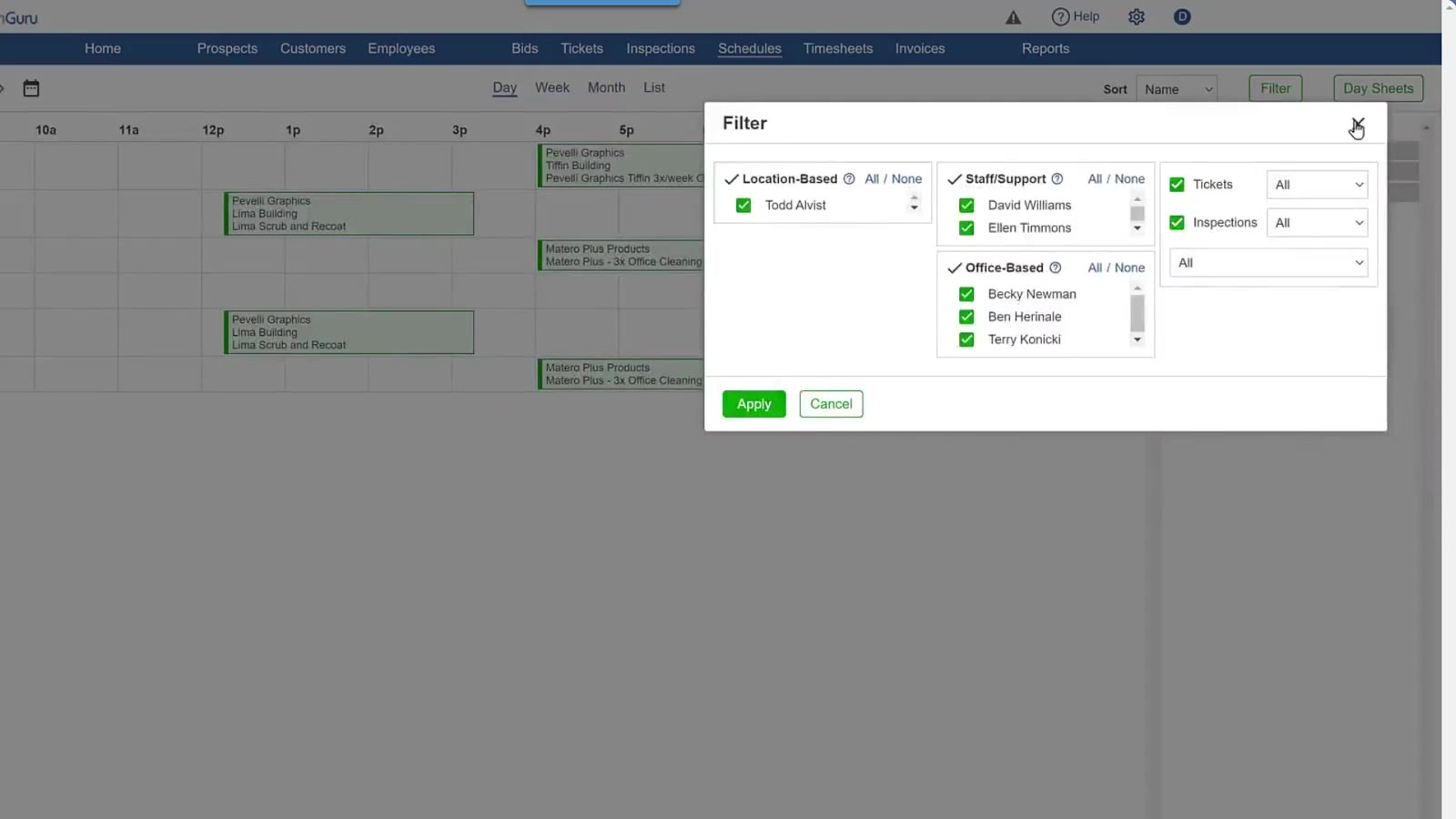
Click the Filter button in the top-right corner, toggle visibility for groups or select work types, and click Apply.
Manage Ticket and Inspection Assignments
Expand the side panel
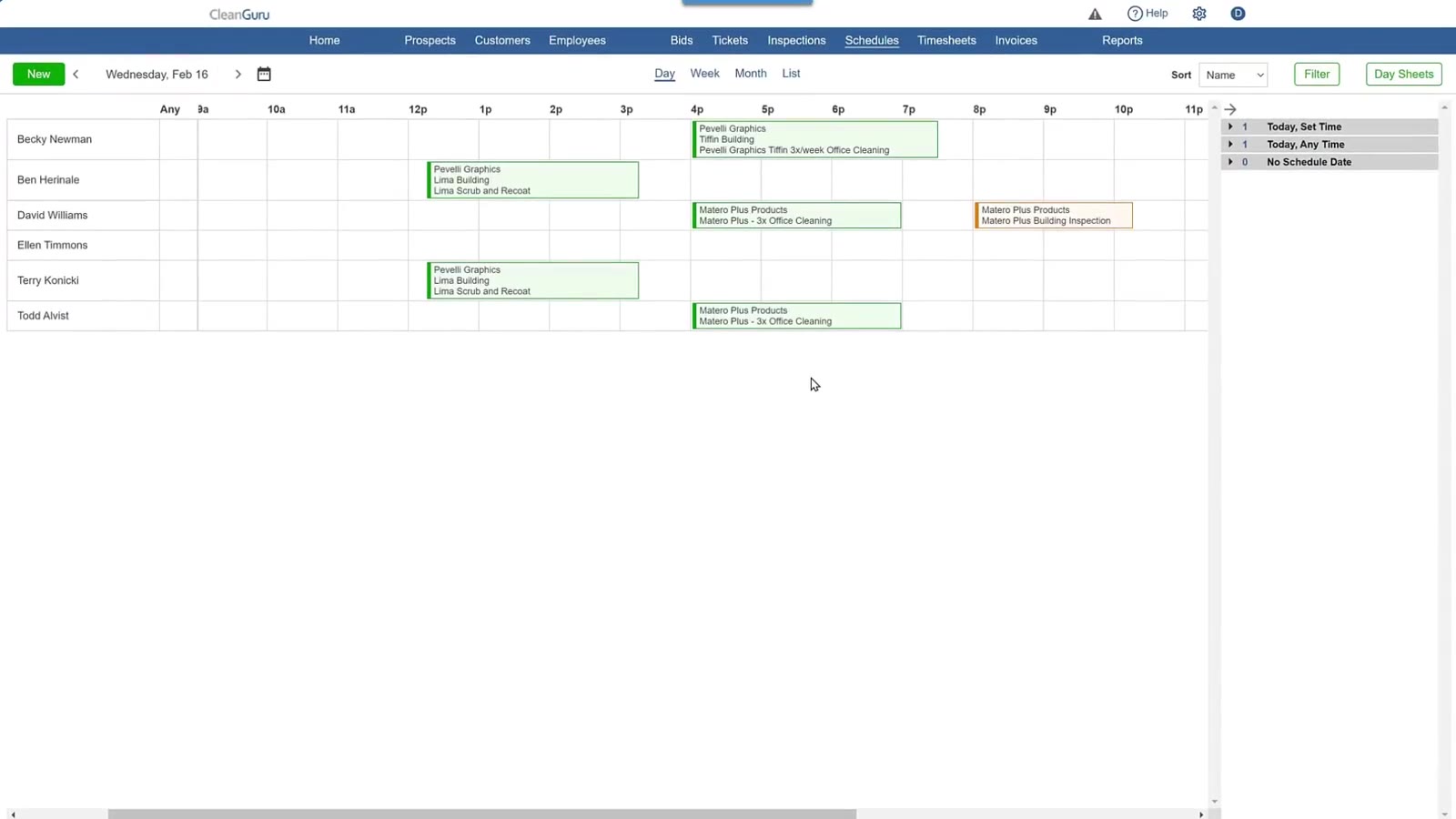
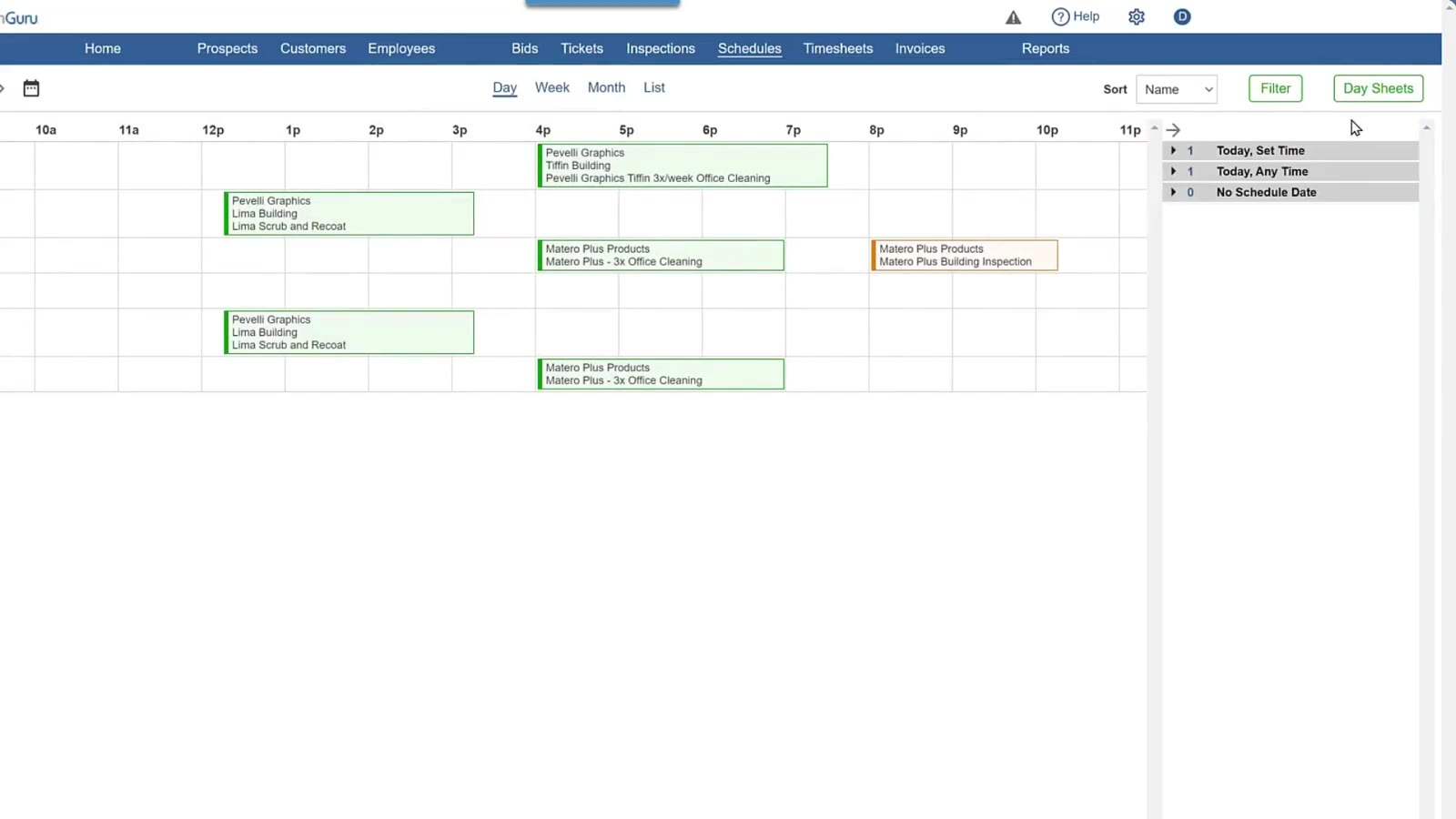
In the vertical panel on the right, click the Arrow next to a category to reveal work tickets or inspections. The whole right-hand column can also be expanded or minimized as needed, using the arrow at the top right of the panel.
Drag to assign
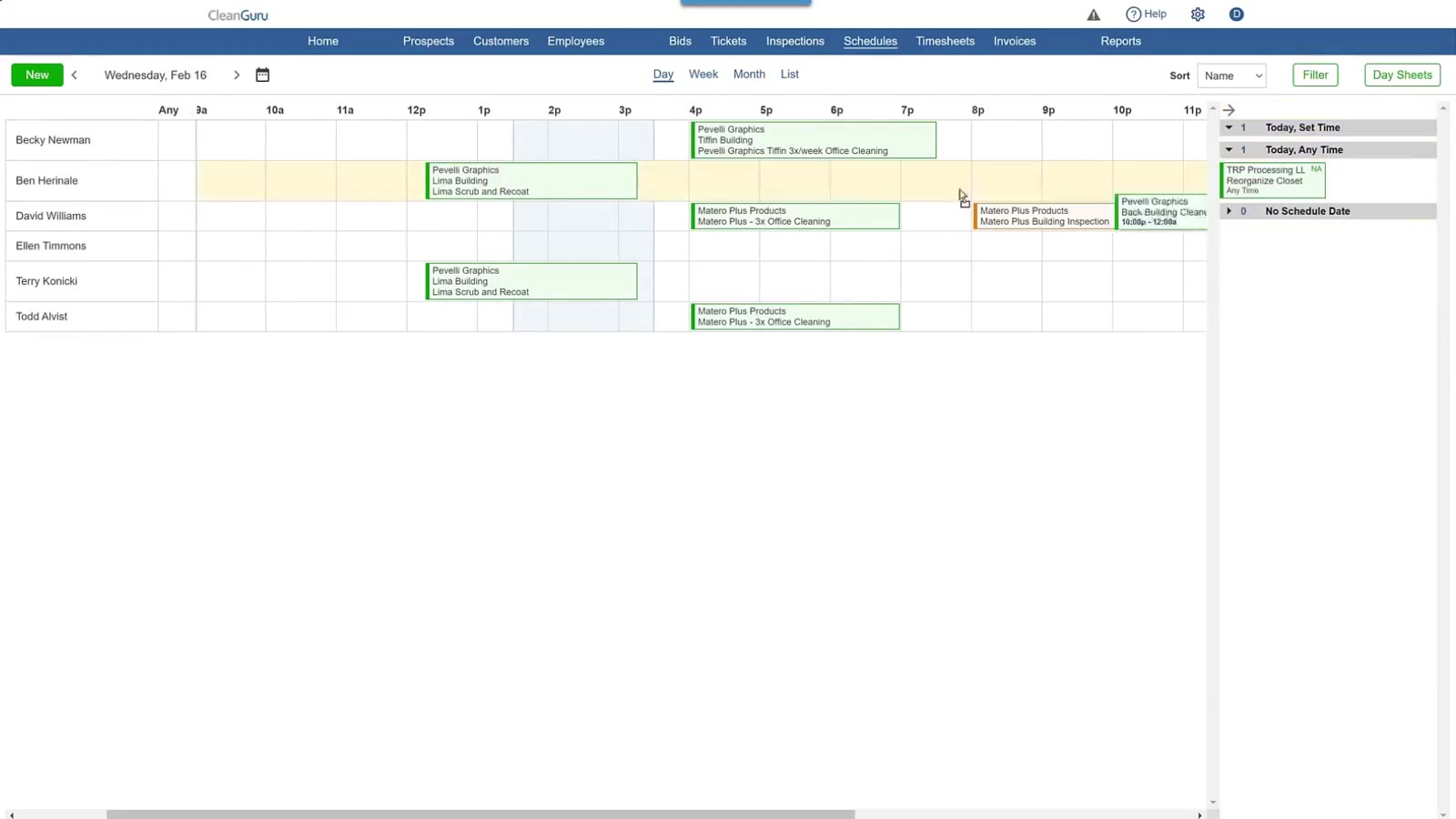
Hover over a ticket or inspection in the right-hand panel and a blue rectangle appears on the Day View, highlighting the time slot that matches its scheduled time. Click and hold the item, drag it onto the main schedule grid to align with the Cleaner’s Name and Start Time, and release the mouse button.
Verify the placement
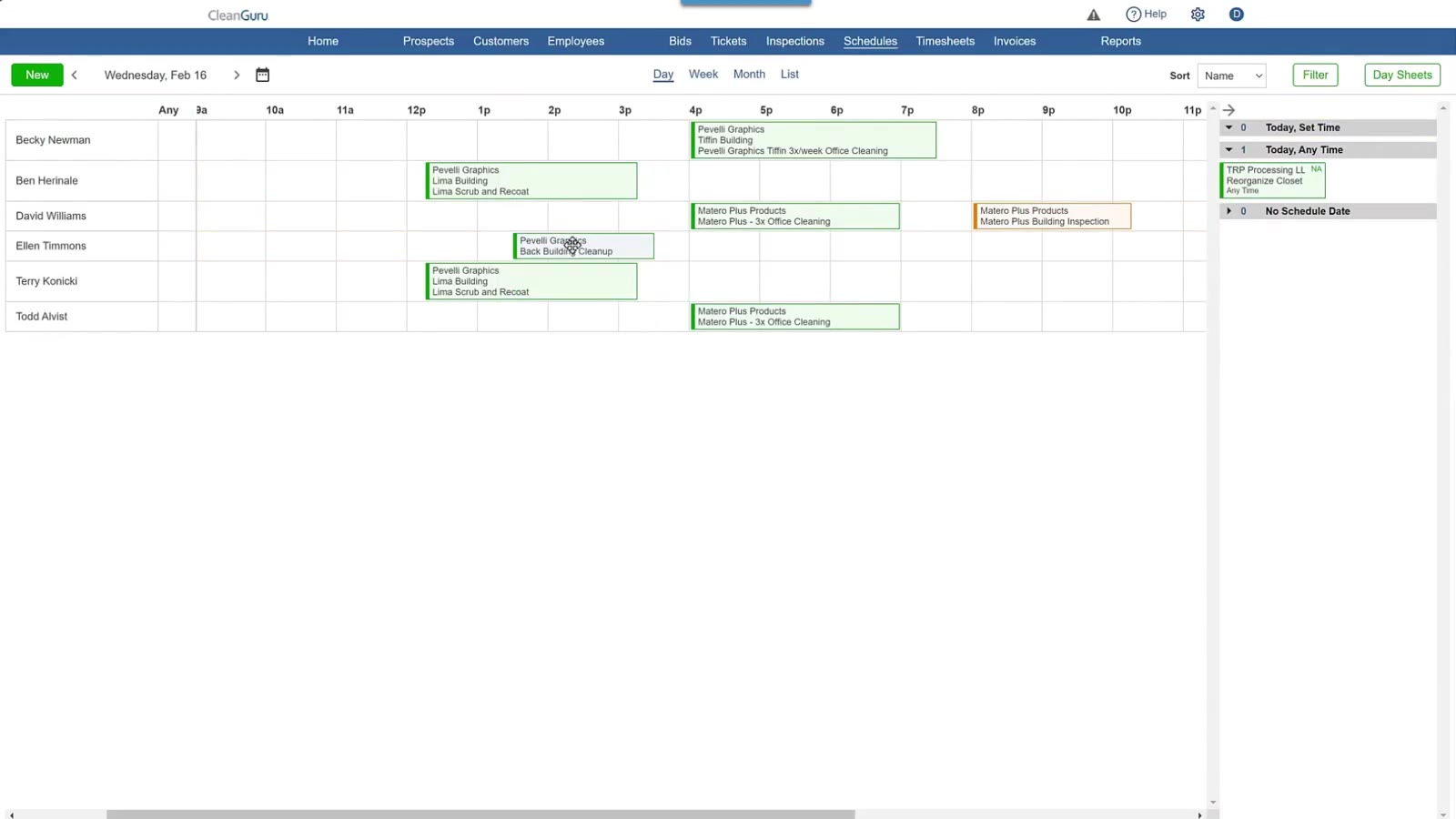
Confirm the item appears as a color-coded block on the timeline (green for tickets, orange for inspections).
Remove from schedule
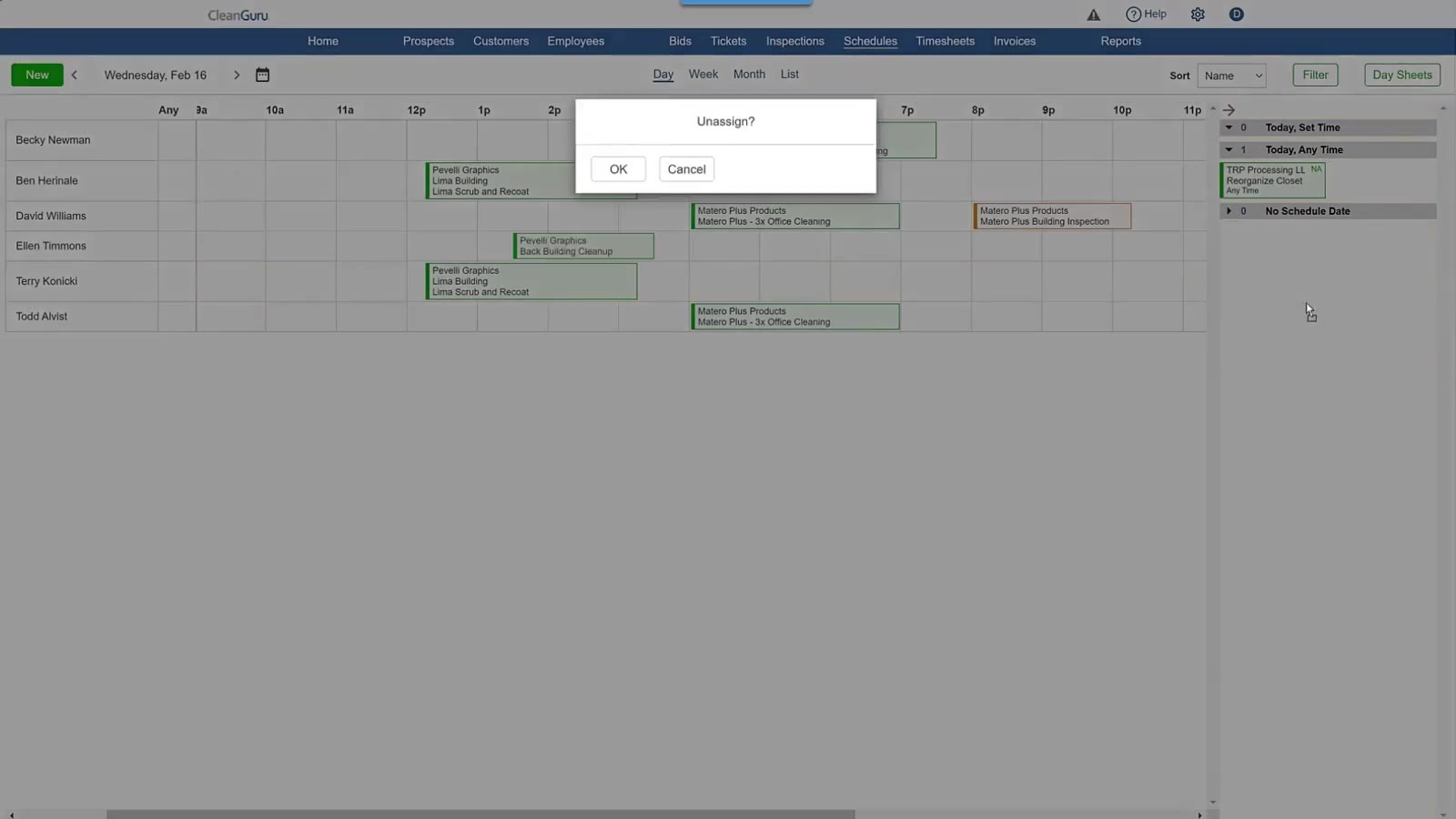
Click and hold a block on the timeline, drag it back into the right-hand panel, and click OK in the Unassign? confirmation dialog. CleanGuru automatically places the item back into the correct category in the right-hand panel.
Adjust Durations and Reassign Shifts
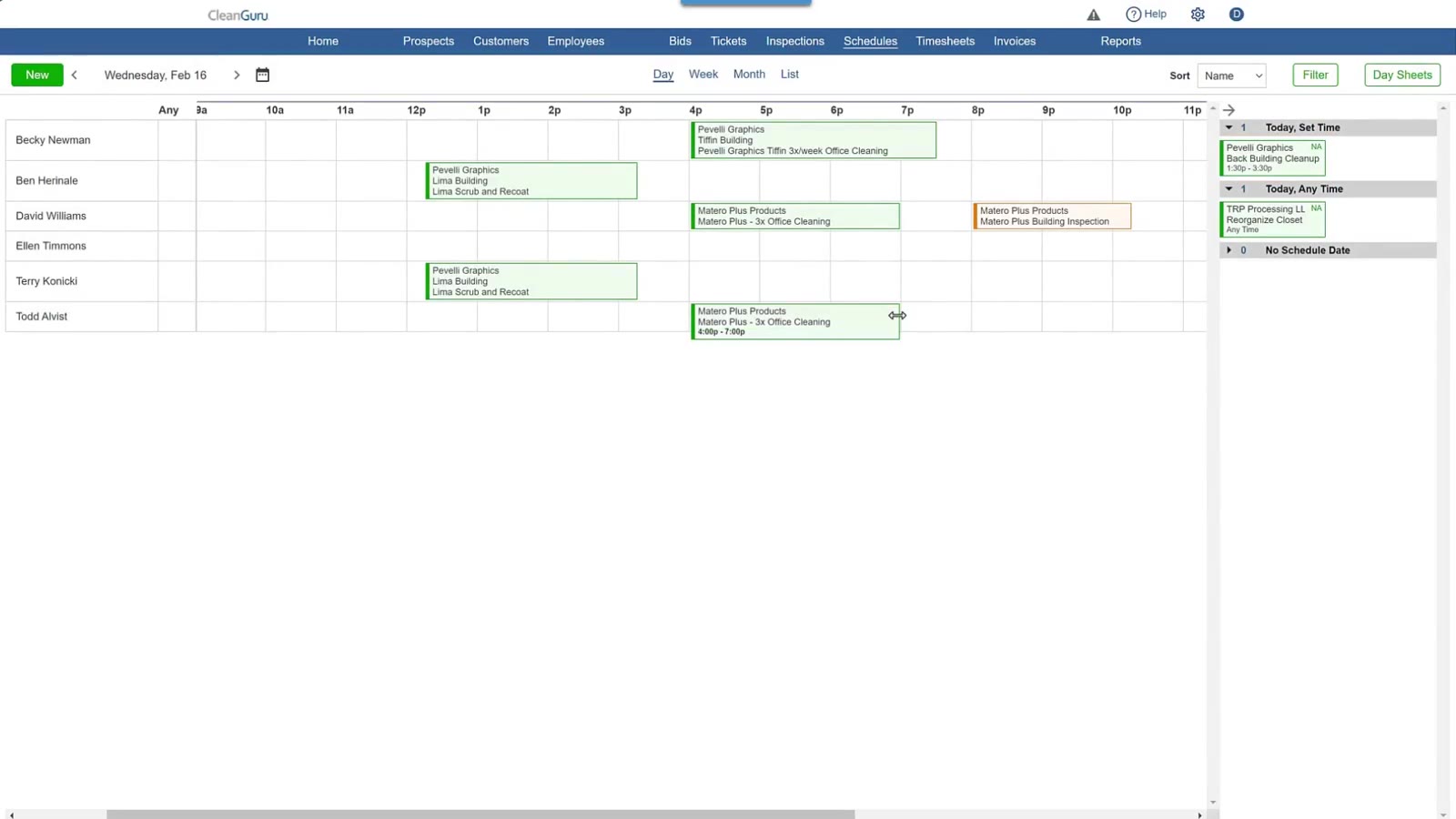
Resize the block
Hover over the right edge of a job block and drag the resize handle left to decrease duration or right to increase it.
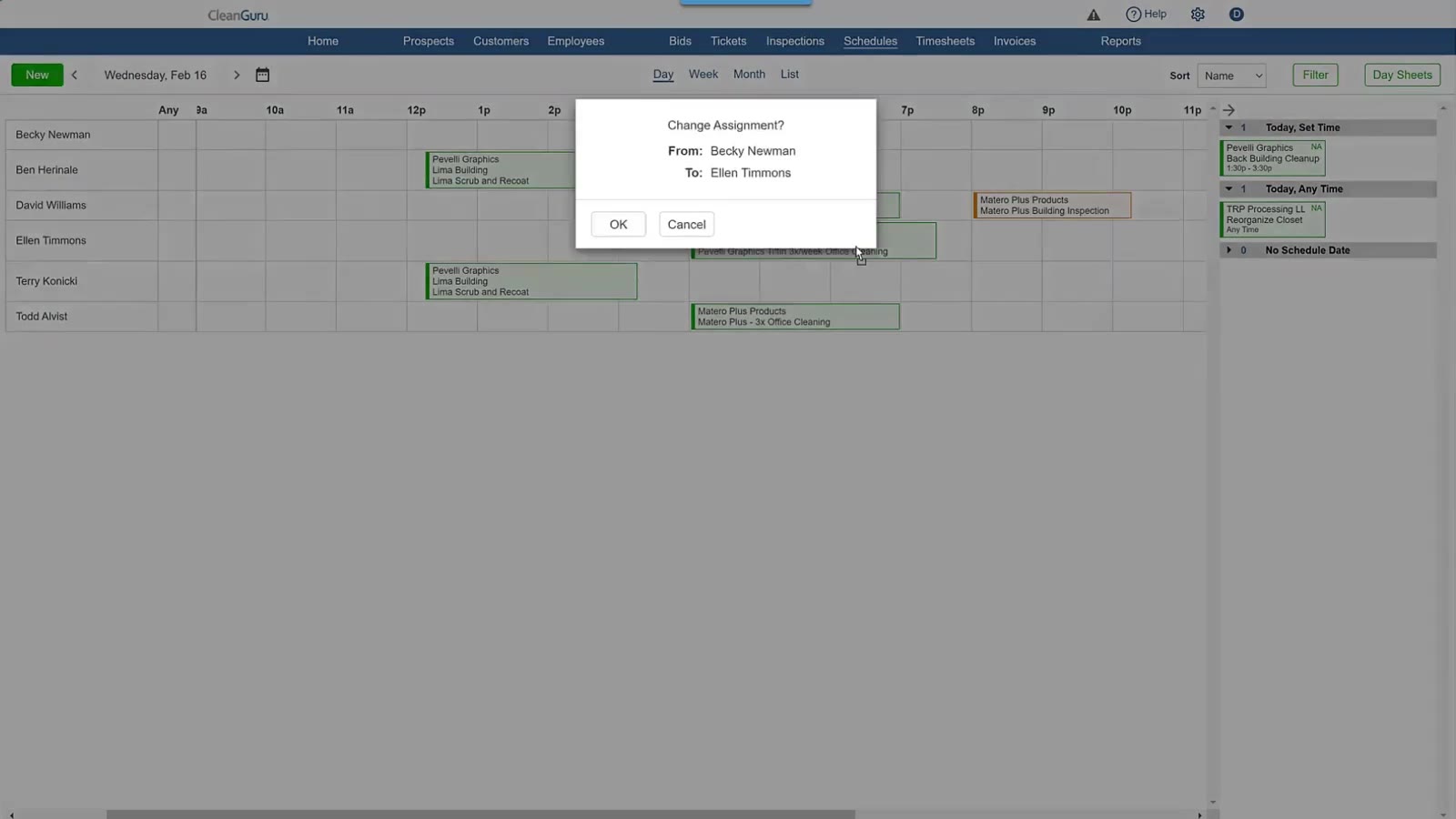
Drag between rows
Drag a job block vertically from one cleaner’s row to another and click OK in the confirmation dialog.
Review Cleaner Schedules and Work Details
Use the Day View to review detailed workload totals and specific job requirements for each cleaner.
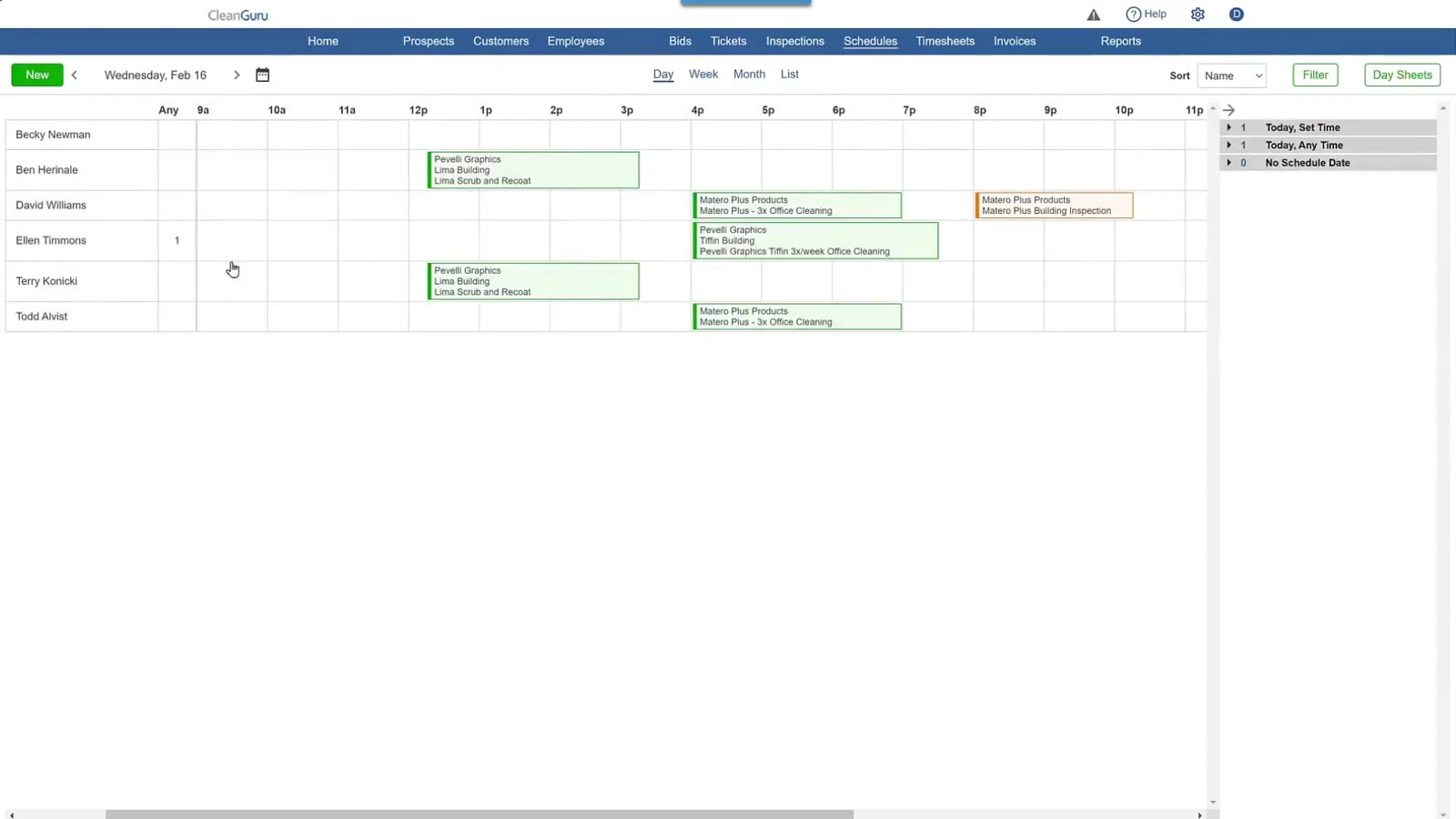
Check the Any column
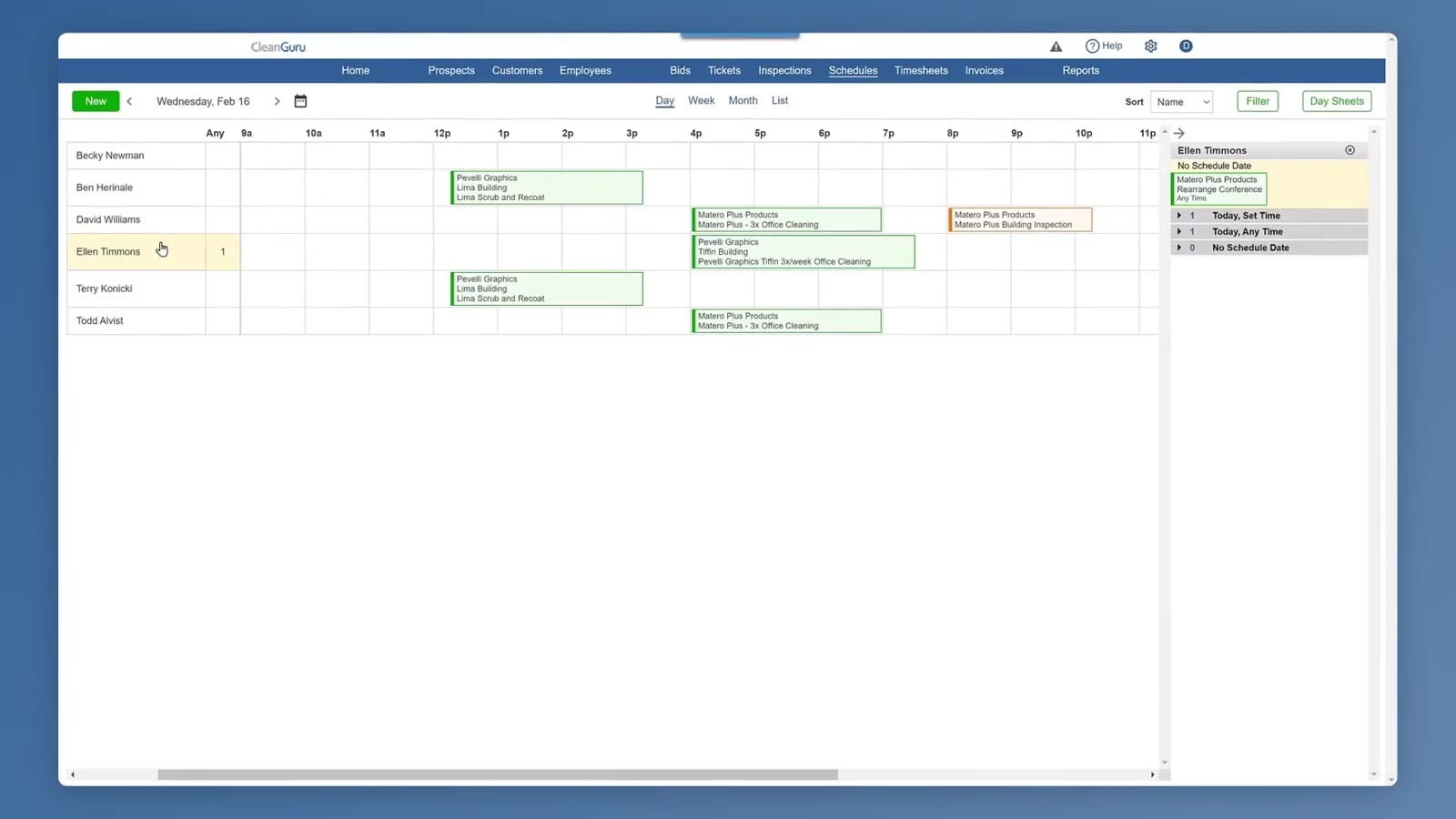
The number beside a cleaner’s name sits in the Any column and counts that cleaner’s work that has no set time. A 1 there means one ticket with no set time — it is not a total of the day’s assignments.
Create work from the timeline
Click a spot on the timeline to open a small popup showing that date, then click Create New to add a ticket or an inspection.
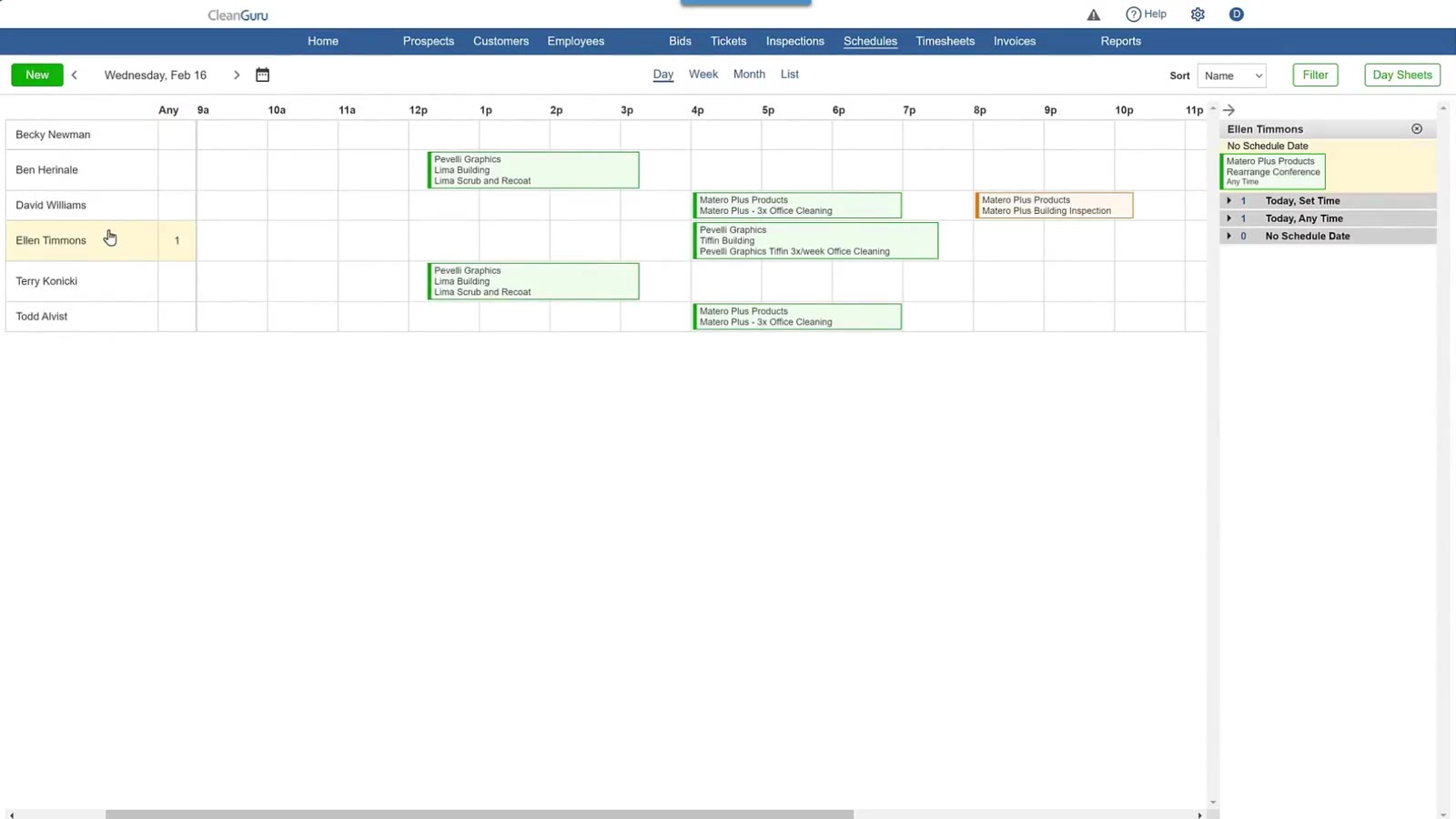
Click a cleaner name
Click the Name of a cleaner who has a number beside it. That cleaner’s row highlights in yellow and a panel opens on the right listing their work with no set time.